
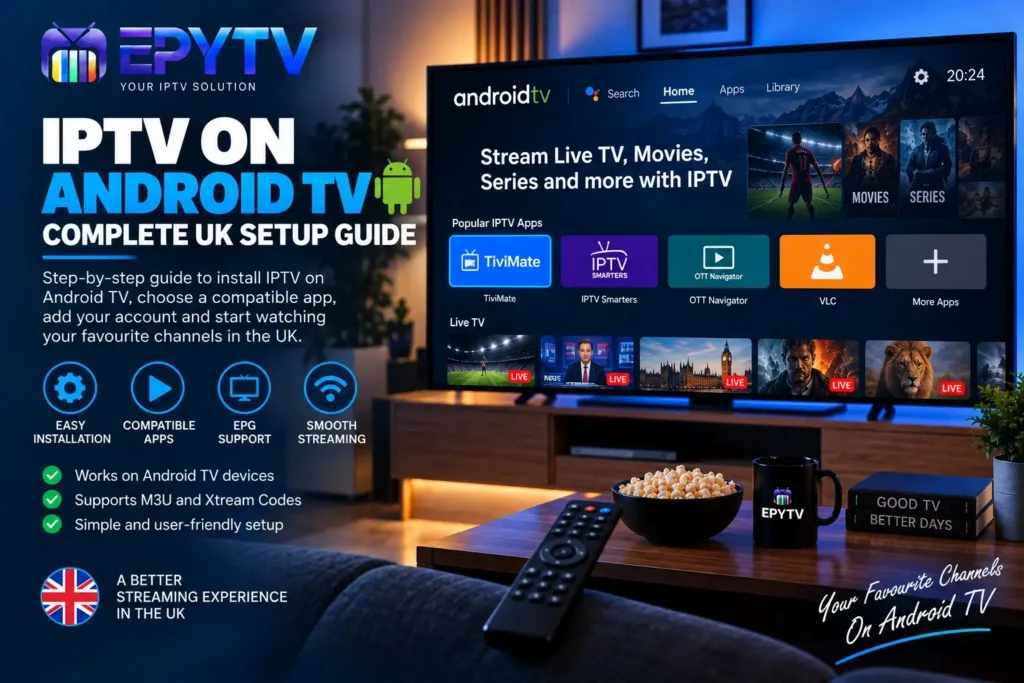
Android TV is one of the most flexible platforms for watching IPTV in the UK. Whether you have an Android TV television or an Android TV box, you can install a compatible IPTV player, add your subscription details and organise your channels, categories and TV guide from one place.
READY TO GET STARTED?
Choose Your IPTV UK Plan
Set up your IPTV service on your compatible device and enjoy a simple viewing experience.
Easy Setup • Secure Payment • Flexible Viewing
What Is Android TV?
Android TV is a smart TV platform designed for televisions and compatible streaming devices. It gives users access to apps, streaming services, media players and other tools through the Google Play Store.
For IPTV users in the UK, Android TV can be convenient because many IPTV player applications are designed to work with Android-based devices. Instead of relying on a computer or smartphone, you can install a compatible player directly on your TV and use your remote control to navigate the service.
The exact menus and available applications can vary depending on the television manufacturer, Android TV version and device model. However, the basic setup process is generally similar.
What Do You Need for IPTV on Android TV?
Before starting the installation, make sure your Android TV is connected to the internet and that you have the login or playlist information provided with your IPTV service.
| Requirement | Why You Need It |
|---|---|
| Android TV device | Your television or Android TV device where the IPTV player will run. |
| Internet connection | Required to load IPTV playlists and stream content. |
| IPTV player | The application used to access and organise your IPTV service. |
| M3U or Xtream Codes details | Depending on how your IPTV provider delivers the service. |
| Remote control | Used to navigate the Android TV interface and IPTV application. |
How to Connect Android TV to the Internet
The first step is making sure your Android TV has a stable internet connection.
Using Wi-Fi
Open the Android TV settings and find the network or Wi-Fi section. Select your home Wi-Fi network, enter the password and wait for the TV to connect.
If the TV is far away from your router, the wireless signal may be weaker. In that situation, moving the router closer, reducing obstacles or using a wired connection can help improve stability.
Using Ethernet
If your Android TV device has an Ethernet port, a wired connection can be another option. Ethernet avoids some of the wireless interference that can affect Wi-Fi connections.
If you regularly experience buffering, check our guide on IPTV buffering and how to fix it.
How to Install an IPTV App on Android TV
Android TV provides access to applications through its app store. The exact interface can differ between devices, but the general process is straightforward.
Step 1: Open the App Store
From the Android TV home screen, open the Google Play Store or the application store available on your device.
Step 2: Search for an IPTV Player
Use the search function to look for an IPTV player that is compatible with your Android TV device.
There are different IPTV players available, and they do not all work in exactly the same way. Some support Xtream Codes, while others may focus on M3U playlists or offer additional features such as EPG support and favourites.
You can compare different options in our guide to the best IPTV apps in the UK.
Step 3: Install the Application
Select the IPTV player and choose the install option. Wait until the installation has finished before opening the application.
Once installed, the application should appear among your Android TV apps.
How to Add IPTV to Android TV
After installing your IPTV player, the next step is connecting it to your IPTV service. The available options depend on the application you choose.
Using Xtream Codes
Many IPTV players provide fields for an Xtream Codes-style login. Usually, you will need information such as:
- Username
- Password
- Server or portal URL
Enter the details exactly as provided by your IPTV service. Pay attention to capital letters, numbers and special characters because an incorrect login can prevent the playlist from loading.
Using an M3U Playlist
Some IPTV applications allow you to add an M3U playlist URL. The application uses this playlist to retrieve the available channels and other information supplied by the service.
If you are not sure which method to use, our guide M3U vs Xtream Codes explains the differences between the two setup methods.
| Method | Typical Information | Useful For |
|---|---|---|
| Xtream Codes | Username, password and server URL | Players that support account-based login |
| M3U | Playlist URL | Players that support M3U playlists |
How to Set Up the IPTV EPG on Android TV
EPG stands for Electronic Programme Guide. It provides programme information such as channel names, programme titles, schedules and descriptions when the IPTV service and player support the feature.
Some IPTV players load EPG information automatically after you add your account. Others may require you to enter or update an EPG source manually.
If your TV guide is empty or shows incorrect programme times, check our detailed guide to IPTV EPG problems.
How to Organise IPTV Channels on Android TV
Once your playlist has loaded, you may have a large number of channels and categories. A good IPTV player can make it easier to organise the content you actually use.
Use Favourites
If your IPTV application supports favourites, add frequently watched channels to this section. This can save time when navigating through a large playlist.
Use Categories
Many IPTV playlists are divided into categories. Depending on the service, you may see groups for different countries, languages, sports, entertainment or other types of content.
Keep the Playlist Updated
If channels disappear or information becomes outdated, refreshing the playlist can sometimes resolve the issue. The available refresh options depend on the IPTV player.
Recommended Internet Speed for IPTV on Android TV
There is no single internet speed that guarantees perfect IPTV playback because streaming performance also depends on network stability, Wi-Fi quality, the device and the stream itself.
| Video Quality | General Speed Guideline | What Matters |
|---|---|---|
| SD | Around 5 Mbps+ | Stable connection |
| HD | Around 10 Mbps+ | Stable Wi-Fi or Ethernet |
| Full HD | Around 15 Mbps+ | Connection stability and device performance |
| 4K | Around 25 Mbps+ | Higher bandwidth and a capable device |
IPTV on Android TV Is Buffering: What Should You Check?
If IPTV keeps buffering on Android TV, do not immediately assume that the IPTV application is the problem. Several different factors can affect playback.
1. Check Your Internet Connection
Run a speed test on the same network used by your Android TV. Also check whether other devices are downloading large files or streaming video at the same time.
2. Restart the Android TV Device
A simple restart can clear temporary application or system problems. Turn the device off, wait briefly and start it again.
3. Test Another Channel
If only one channel is buffering while others work normally, the problem may be specific to that stream rather than your Android TV device.
4. Try Ethernet
If Wi-Fi is unstable, connecting the Android TV device through Ethernet can help determine whether the wireless connection is contributing to the problem.
5. Check the IPTV App
An IPTV player can also experience temporary problems. Check whether an update is available or test another compatible player to determine whether the issue is application-specific.
IPTV App Not Working on Android TV
Sometimes the IPTV service loads correctly but the application itself does not behave as expected. You may see a blank screen, an application that closes unexpectedly or a playlist that refuses to load.
Try these steps:
- Restart Android TV.
- Check your internet connection.
- Open the IPTV application again.
- Check that your login information is correct.
- Refresh the playlist.
- Check for an available app update.
- Clear the application’s cache if the Android TV settings provide that option.
- Test another compatible IPTV player.
For a more detailed troubleshooting process, see our guide on IPTV not working in the UK.
Android TV vs Google TV for IPTV
Google TV and Android TV are closely related platforms, but their interfaces and user experiences can differ depending on the device.
| Feature | Android TV | Google TV |
|---|---|---|
| App support | Android TV-compatible apps | Google TV-compatible apps |
| IPTV players | Many compatible options | Many compatible options |
| Interface | Android TV interface | Google TV interface |
| Setup | Install app and add IPTV details | Install app and add IPTV details |
If you also use Google TV, take a look at our guide on IPTV on Google TV.
Android TV Box vs Android TV Built Into a Television
IPTV can be used on both an Android TV television and a compatible Android TV box. The main difference is where the operating system is running.
With an Android TV television, the software is built directly into the TV. An Android TV box connects to your television through HDMI and provides its own interface and applications.
The better option depends on your existing equipment, available ports, remote control and the specifications of the device you choose.
How to Improve IPTV Performance on Android TV
A few simple habits can make your setup easier to manage:
- Keep Android TV updated when updates are available.
- Keep your IPTV player updated.
- Use a stable internet connection.
- Avoid unnecessary applications running on the device.
- Keep enough free storage available.
- Use Ethernet when Wi-Fi is unreliable and Ethernet is available.
- Refresh your playlist when your IPTV provider updates it.
- Use an IPTV player that supports the login method supplied by your service.
Common Android TV IPTV Problems and Solutions
| Problem | Possible Solution |
|---|---|
| IPTV app will not open | Restart Android TV, update the app or clear its cache. |
| Playlist not loading | Check the login details, playlist URL and internet connection. |
| Channels keep buffering | Check internet stability, Wi-Fi signal, device performance and the individual stream. |
| EPG is empty | Refresh the guide or check the EPG configuration in the IPTV player. |
| Login rejected | Recheck the username, password and server details supplied by your service. |
| Only one channel fails | Test other channels to determine whether the issue is limited to that stream. |
Can You Use IPTV on Multiple Android TV Devices?
Whether you can use an IPTV subscription on multiple Android TV devices depends on the terms and device limits of the service you choose.
Some services may allow more than one connection, while others may restrict simultaneous connections. Check the conditions of your subscription before using the same account on multiple televisions or devices.
Is IPTV Legal in the UK?
IPTV is a technology used to deliver television and video content over an internet connection. The legality of the service depends on the content being provided and whether the provider has the necessary rights or permissions.
When using an IPTV service in the UK, make sure that the content you access is provided lawfully and that your use complies with applicable UK laws and the terms of the service.
Frequently Asked Questions About IPTV on Android TV
Can I install IPTV on Android TV?
Yes. Android TV supports compatible IPTV player applications. You can install a suitable player and then add your IPTV account or playlist using the method supported by that application.
Do I need an Android TV box?
No. If your television already runs Android TV and supports the required IPTV application, you may not need a separate box.
Can I use M3U on Android TV?
Yes, provided that the IPTV player you choose supports M3U playlists.
Can I use Xtream Codes on Android TV?
Yes, many IPTV players support an Xtream Codes-style login. The exact fields can vary between applications.
Why is IPTV buffering on my Android TV?
Buffering can be caused by an unstable internet connection, weak Wi-Fi, network congestion, device performance, application issues or problems with a particular stream. Testing different channels and checking the network can help identify the cause.
Does Android TV support EPG?
Many IPTV players support EPG information, although the exact setup depends on the application and the IPTV service supplying the guide data.
Can I use the same IPTV account on my phone and Android TV?
This depends on the terms and connection limits of your IPTV service. Check the conditions of your subscription before using the account on multiple devices at the same time.
Final Thoughts
Setting up IPTV on Android TV is generally straightforward once you have a compatible IPTV player and the correct account or playlist information. The basic process involves connecting your Android TV to the internet, installing an IPTV application, adding your M3U or Xtream Codes details and configuring features such as the EPG.
If you experience problems, start with the basics: check the internet connection, verify your login details, restart the device, refresh the playlist and make sure the IPTV application is working correctly.
For UK users, Android TV can provide a convenient way to access a compatible IPTV service directly from a television without needing a computer or smartphone.
READY TO GET STARTED?
Choose Your IPTV UK Plan
Set up your IPTV service on your compatible device and enjoy a simple viewing experience.
Easy Setup • Secure Payment • Flexible Viewing