
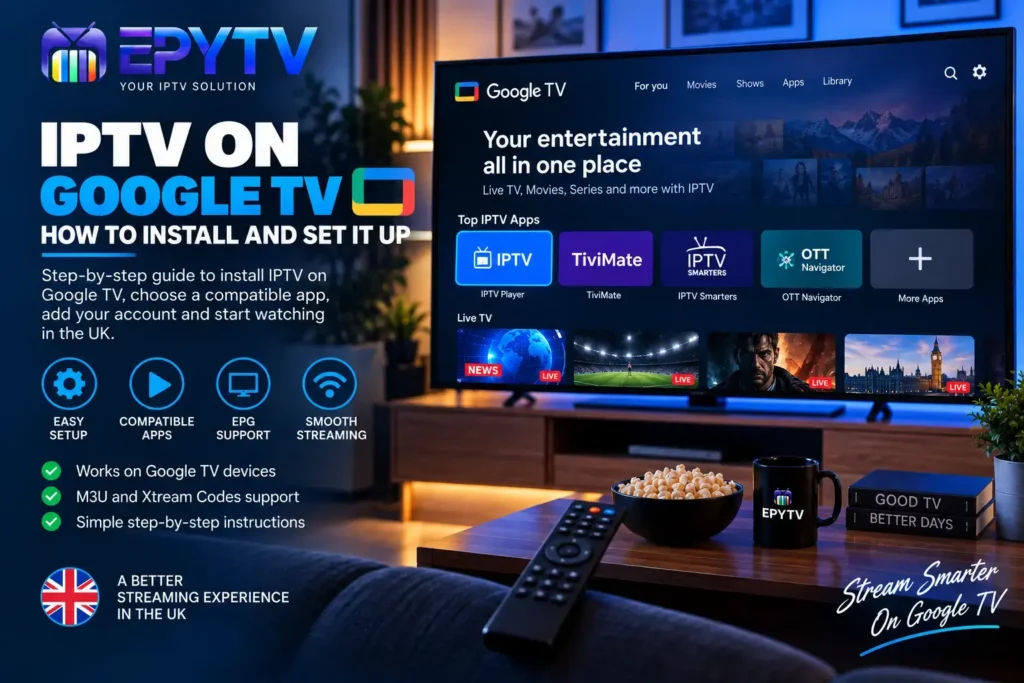
Google TV makes it easy to bring your streaming apps, live TV services and other entertainment options together in one place. If you want to use IPTV on Google TV, the basic process involves choosing a compatible IPTV player, installing it, adding your IPTV account or playlist and then configuring features such as the TV guide and favourites.
READY TO GET STARTED?
Choose Your IPTV UK Plan
Set up your IPTV service on your compatible device and enjoy a simple viewing experience.
Easy Setup • Secure Payment • Flexible Viewing
What Is Google TV?
Google TV is a smart TV interface built around the Android TV platform and designed to bring apps and entertainment content together in a simple interface.
Depending on the device, Google TV can be available on compatible smart TVs and external streaming devices. The exact menus and features can vary between manufacturers and device models.
For IPTV users, one of the main advantages is access to a wide range of compatible applications through the device’s app ecosystem.
Once a suitable IPTV player is installed, you can add the connection information supplied by your IPTV service and use the application to browse compatible live TV content.
Can You Install IPTV on Google TV?
Yes, compatible IPTV applications can be used on Google TV devices. The exact applications available to you depend on your device, region and the current Google Play app catalogue.
It is important to understand that Google TV itself is not an IPTV service. It is the platform running on your television or streaming device. You normally need a separate IPTV application and an IPTV service that provides the connection details required by that application.
The basic setup therefore looks like this:
- Connect your Google TV device to the internet.
- Open the Google Play Store.
- Choose a compatible IPTV player.
- Install the application.
- Open the IPTV player.
- Add your IPTV account or playlist.
- Allow the application to load your channels.
- Configure the EPG and favourites if supported.
What Do You Need to Use IPTV on Google TV?
Before starting the setup, make sure you have everything you need.
| Requirement | Why You Need It |
|---|---|
| Google TV device | Provides the platform for your IPTV application. |
| Internet connection | Required to load IPTV playlists and streams. |
| IPTV application | Used to connect to and browse your IPTV service. |
| IPTV login details | Required to add your IPTV account or playlist. |
| Remote control | Used to navigate the Google TV interface and IPTV application. |
Step 1: Connect Google TV to the Internet
Before installing an IPTV application, make sure your Google TV device has a stable internet connection.
During the initial device setup, Google TV normally asks you to connect to a Wi-Fi network. If your device is already configured, you can check the network settings before continuing.
For IPTV streaming, connection stability is important. A connection that repeatedly drops can cause channels to stop playing or produce buffering.
If you experience buffering after completing the setup, check our guide to IPTV buffering and how to fix it.
Step 2: Open the Google Play Store
From the Google TV home screen, open the Google Play Store or the applications section available on your device.
Use the search function to look for an IPTV player that is compatible with your Google TV device.
There are different IPTV applications available, and their availability can change over time. Before installing an application, check its description, compatibility and available features.
Step 3: Choose an IPTV Player
An IPTV player is the application that allows you to enter your IPTV connection information and browse the available channels.
Popular IPTV players can provide features such as:
- Live TV channel lists
- Categories and favourites
- Electronic Programme Guide support
- Playlist management
- Search functionality
- Multiple viewing settings
The available features depend on the specific application and version.
If you are comparing IPTV applications, our guide to the best IPTV apps in the UK can help you understand the different types of players available.
Step 4: Install the IPTV App
Once you have selected a compatible IPTV player, open its listing and choose the available install option.
Wait for the installation to finish and then open the application.
The first screen can vary significantly between IPTV players. Some applications immediately ask you to add a playlist, while others may display several connection methods.
Follow the setup option that corresponds to the information provided by your IPTV UK service.
Step 5: Add Your IPTV Account
Your IPTV provider may give you different types of connection information.
For example, you may receive an M3U playlist URL or an Xtream Codes-style login containing a server address, username and password.
Choose the matching option inside your IPTV application.
Do not enter an M3U URL into an Xtream Codes username field or enter account credentials into a playlist field. Each connection method uses different information.
If you want to understand the difference between these methods, read our detailed guide to M3U vs Xtream Codes.
Step 6: Set Up IPTV Using an M3U Playlist
If your IPTV service provides an M3U playlist, look for an option such as:
- Add Playlist
- M3U Playlist
- Playlist URL
- Add URL
- Remote Playlist
The exact wording depends on the application.
Enter the complete M3U URL supplied by your IPTV service and confirm the connection.
The application should then process the playlist and display the available channel groups if the connection is valid and supported.
Step 7: Set Up IPTV Using Xtream Codes
If your IPTV service provides Xtream Codes-style login information, select the corresponding option in your IPTV application.
You may be asked for:
- Server URL
- Username
- Password
Enter each detail carefully and confirm the connection.
Once the account has been accepted, the IPTV application may load categories such as Live TV, Movies, Series or other sections supported by the service.
Step 8: Wait for Your IPTV Channels to Load
After adding your IPTV account, give the application enough time to load the available information.
The loading time can depend on the size of the playlist, your internet connection and the IPTV application itself.
If you have a large channel list, the first synchronisation may take longer than a smaller playlist.
Once the process is complete, open the Live TV section and test several channels.
Step 9: Configure the IPTV EPG
EPG stands for Electronic Programme Guide. It provides information about current and upcoming programmes.
If your IPTV service and application support EPG information, you may see a TV-guide section after your account has been loaded.
Depending on the application, you may find options such as:
- TV Guide
- EPG
- Refresh EPG
- Update Guide
- EPG Settings
If the guide is empty or shows incorrect times, check your device’s date and time settings and refresh the guide.
For more information, read our complete IPTV EPG UK guide.
Best IPTV Apps for Google TV
There is no single IPTV application that is suitable for every Google TV user. The right choice depends on the connection method supported by your IPTV service and the features you want.
When comparing IPTV players, look at:
| Feature | Why It Matters |
|---|---|
| M3U Support | Useful if your service provides a playlist URL. |
| Xtream Codes Support | Useful if your service provides account-based login details. |
| EPG | Makes it easier to browse programme schedules. |
| Favourites | Helps organise frequently watched channels. |
| Search | Makes large playlists easier to navigate. |
How to Organise IPTV Channels on Google TV
Large IPTV playlists can contain many channels and categories. Organising them can make everyday navigation much easier.
If your IPTV application supports favourites, add frequently watched channels to your favourites list.
You can also use categories where available to separate channels by language, country or content type.
The exact organisation options depend on the IPTV application.
How to Fix IPTV Not Working on Google TV
If your IPTV application is installed but your channels are not loading, start with the simplest checks.
Check the Internet Connection
Open another application on Google TV and check whether it can connect to the internet normally.
If several applications are having connection problems, restart your router and Google TV device before testing IPTV again.
Restart the IPTV Application
Close the IPTV player and open it again. Temporary application problems can sometimes prevent playlists or streams from loading correctly.
Restart Google TV
A device restart can clear temporary system or application issues.
Check Your IPTV Login
Verify your M3U URL or Xtream Codes information. Even a small typing error can prevent the application from connecting.
Test More Than One Channel
If one channel does not work, test several others.
If most channels play normally, the issue may be limited to a particular stream rather than your Google TV device.
IPTV Buffering on Google TV
Buffering means that the video pauses while the application loads additional data.
Several factors can contribute to buffering, including:
- Unstable Wi-Fi
- Network congestion
- Device performance
- Application configuration
- The individual stream
If your Google TV device is connected through Wi-Fi, try moving the router closer or using a wired Ethernet connection where the hardware supports it.
You can also compare IPTV playback with other streaming applications to see whether the problem affects your entire internet connection or only IPTV.
For a detailed troubleshooting guide, see IPTV Buffering: Causes and Fixes.
Google TV vs Android TV for IPTV
Google TV and Android TV are closely related platforms, but the user interface and experience can differ depending on the device.
For IPTV users, the most important factor is usually application compatibility rather than the name of the interface.
A compatible IPTV player can provide access to features such as live TV, EPG, favourites and playlist management, depending on the application.
| Aspect | Google TV | Android TV |
|---|---|---|
| Platform | Google TV experience built on Android TV technology | Android TV platform and interface |
| IPTV Apps | Depends on device and available apps | Depends on device and available apps |
| EPG | Available through compatible IPTV apps | Available through compatible IPTV apps |
| Setup | Install a compatible IPTV player and add your account | Install a compatible IPTV player and add your account |
Can You Use IPTV on a Google TV Smart TV?
If your television includes Google TV and supports the required applications, you can use a compatible IPTV player directly on the TV.
This can remove the need for a separate streaming stick or box, provided that the television’s hardware and software support the application you want to use.
Before installing anything, check the application requirements and compatibility with your particular TV model.
Can You Use IPTV on a Google TV Streaming Device?
Google TV is also available on certain external streaming devices.
The setup process is generally similar: connect the device to the internet, install a compatible IPTV player, add your IPTV account and configure the available features.
The exact menus can vary between manufacturers and device versions.
How to Improve IPTV Performance on Google TV
A few simple practices can help keep your IPTV setup organised.
- Keep Google TV updated where appropriate.
- Keep your IPTV application updated.
- Use a stable internet connection.
- Restart the device if an application becomes unresponsive.
- Remove applications you no longer use if storage is limited.
- Use favourites to organise frequently watched channels.
- Check your EPG settings if programme information is missing.
If you have many applications installed, keeping your Google TV device organised can also make navigation easier.
IPTV on Google TV for UK Users
Google TV can be a convenient platform for IPTV users in the UK because compatible IPTV applications can be installed directly on supported devices.
The exact apps, features and availability can vary depending on your device and region, so always check the current application information before installation.
When choosing an IPTV service, also check which devices and applications are supported and make sure that your use of IPTV complies with applicable laws and that you have the necessary rights or permissions for the content you access.
Common Google TV IPTV Problems
| Problem | First Thing to Check |
|---|---|
| App won’t open | Restart Google TV and check for app updates. |
| Channels won’t load | Check internet and IPTV login details. |
| Black screen | Test another channel and restart the application. |
| EPG missing | Refresh EPG and check date/time settings. |
| Buffering | Check Wi-Fi stability, network load and device performance. |
Frequently Asked Questions
Can I install IPTV on Google TV?
Yes. Compatible IPTV applications can be installed on supported Google TV devices. You then add the IPTV connection information supplied by your service.
Do I need an IPTV app on Google TV?
Yes. Google TV is the platform, while an IPTV player is normally used to connect to and display your IPTV service.
Can I use M3U on Google TV?
Yes, if the IPTV application you choose supports M3U playlists. The exact setup depends on the application.
Can I use Xtream Codes on Google TV?
Yes, when the IPTV application supports an Xtream Codes-style login. You may need a server address, username and password.
Does IPTV on Google TV support EPG?
EPG support depends on the IPTV application and service. Compatible players can display programme-guide information when the relevant data is available.
Why is IPTV buffering on Google TV?
Buffering can be related to Wi-Fi stability, internet congestion, device performance, application settings or the individual stream. Test your connection and restart the application before changing your setup.
Why are my IPTV channels not loading on Google TV?
Check your internet connection and IPTV login details first. If only certain channels fail, test other channels to determine whether the issue is channel-specific.
Can I use IPTV without a Firestick if I have Google TV?
Yes. If your Smart TV or Google TV device supports a compatible IPTV application, you can potentially use the application directly without adding a separate Fire TV device.
Final Thoughts
Setting up IPTV on Google TV is generally straightforward when you have a compatible IPTV application and the correct connection information.
The basic process is to connect your Google TV device to the internet, install an IPTV player, add your M3U playlist or Xtream Codes details and allow the application to load your channels.
After the initial setup, you can configure features such as EPG, favourites and categories depending on the IPTV player you choose.
If something does not work, start with the basics: check your internet connection, restart the application and device, verify your IPTV credentials and test several channels.
For UK users, the most important thing is to choose a compatible application for your particular Google TV device and use the connection method supported by your IPTV service.
READY TO GET STARTED?
Choose Your IPTV UK Plan
Set up your IPTV service on your compatible device and enjoy a simple viewing experience.
Easy Setup • Secure Payment • Flexible Viewing