
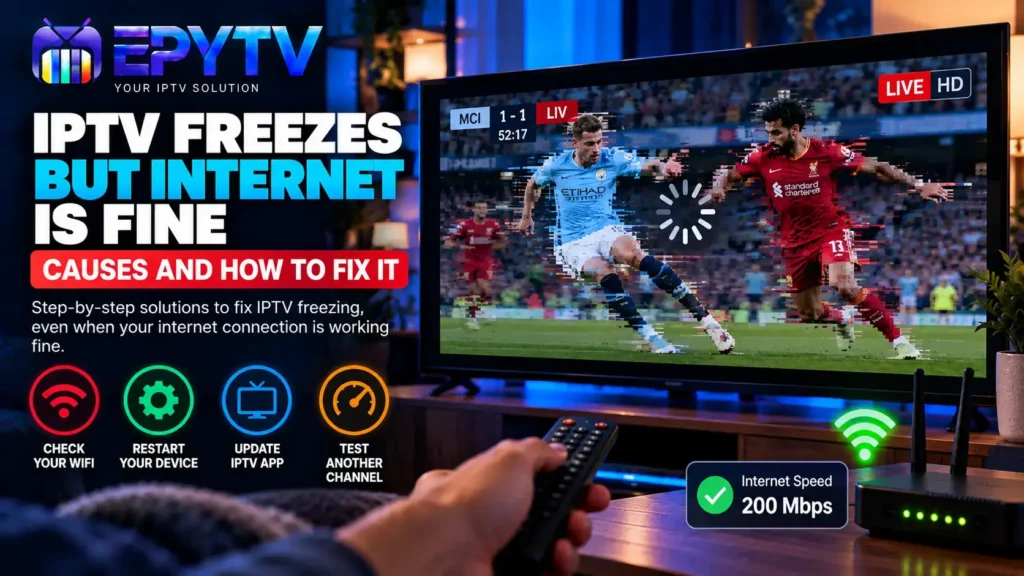
Does your IPTV keep freezing even though your internet connection seems fast and other websites work normally? This is a common problem, and having a good internet speed does not always mean that IPTV playback will be perfectly stable.
READY TO GET STARTED?
Choose Your IPTV UK Plan
Set up your IPTV service on your compatible device and enjoy a simple viewing experience.
Easy Setup • Secure Payment • Flexible Viewing
Why Does IPTV Freeze Even When the Internet Is Fast?
IPTV freezing can happen for several reasons. Your internet speed is only one part of the streaming process. The Wi-Fi connection, device performance, IPTV application, stream source and network congestion can all affect playback.
For example, you might have a 200 Mbps internet package and still experience freezing on one particular channel. If other channels work normally, the problem may not be your internet connection at all.
The first step is therefore to identify exactly when the freezing happens.
IPTV Freezing vs IPTV Buffering
Freezing and buffering are often used to describe the same problem, but they can happen in slightly different ways.
| Problem | What You Usually See | Possible Cause |
|---|---|---|
| Buffering | Video stops while loading | Connection or stream issue |
| Freezing | Picture stops or becomes stuck | App, device, network or stream issue |
| Channel disconnects | Stream stops completely | Stream or service problem |
| Short pauses | Playback stops for a few seconds | Temporary connection instability |
If your problem is mainly buffering, you can also read our detailed IPTV buffering guide.
1. Check if Every Channel Freezes
This is one of the most useful tests you can perform.
Open a few different channels and watch them for a minute or two. If every channel freezes, your device, application or connection could be responsible.
If only one or two channels freeze while everything else works normally, the problem could be related to those individual streams.
This simple test can save you from changing unnecessary settings on your device.
2. Your Wi-Fi Can Be the Problem
A fast internet package does not automatically mean that your device has a stable Wi-Fi connection.
The distance between your device and router, walls, interference and the number of connected devices can all affect wireless performance.
Microsoft also notes that Wi-Fi performance can be affected by the location of the computer, physical obstructions and other wireless devices. 1
Try These Wi-Fi Fixes
- Move closer to your router.
- Restart the router.
- Try the 5 GHz Wi-Fi network if available.
- Disconnect devices that are not being used.
- Avoid placing the router behind large objects or inside closed furniture.
- Test IPTV using an Ethernet connection if possible.
3. Try Ethernet Instead of Wi-Fi
If your IPTV device has an Ethernet port, a wired connection can be a useful test.
Connect your device directly to the router and check whether the freezing continues.
If IPTV becomes stable after switching to Ethernet, the problem may have been related to your Wi-Fi connection rather than your internet package.
| Connection | Best For | Possible Issue |
|---|---|---|
| Ethernet | Stable streaming | Requires a cable |
| 5 GHz Wi-Fi | Fast wireless connection | Shorter range |
| 2.4 GHz Wi-Fi | Longer range | Can experience more interference |
4. Restart Your IPTV App
Sometimes the problem is simply the IPTV application.
Close the application completely instead of leaving it running in the background. Then open it again and test the same channel.
If the application continues freezing, check whether an update is available. Using an outdated application can sometimes create compatibility or playback problems.
5. Restart Your Device
A simple restart can resolve temporary software and memory problems.
Restart your Smart TV, Firestick, Android TV box, Google TV device, phone, tablet or computer, depending on where you are watching IPTV.
After restarting, open the IPTV application again and test several channels.
6. Too Many Apps Running in the Background
Your internet connection might be perfectly fine while the device itself is struggling.
Running several applications at the same time can use system resources. On a computer, for example, browsers, downloads, cloud applications and other programs can consume memory, CPU resources or bandwidth.
Microsoft also identifies running programs and available system resources as factors that can affect overall performance. 2
Try closing unnecessary applications before starting IPTV.
7. Check Your Internet While IPTV Is Freezing
Do not rely only on the speed shown by your internet package.
When IPTV freezes, open another device connected to the same network and test a website or video service.
If several devices are slow at the same time, the problem is more likely to be related to your network connection.
If everything else works normally while IPTV continues freezing, investigate the IPTV application, device or individual stream.
8. Check if Only One Channel Freezes
This is an important test that many users skip.
If one channel freezes repeatedly while other channels play normally, there is no reason to immediately change your router, internet package or device settings.
Try several channels from different categories.
- If all channels freeze → investigate your connection or device.
- If one channel freezes → investigate that stream.
- If one category freezes → check whether multiple streams in that category have the same issue.
- If IPTV works after restarting the app → the application may have temporarily stopped responding.
9. Test IPTV at Different Times
Does IPTV work perfectly during the day but freeze in the evening?
If so, network congestion may be worth investigating.
Internet performance can vary during periods of heavy network activity. Microsoft notes that local congestion and peak activity periods can affect internet performance. 3
Test the same channel at different times and compare the results.
10. Check Your Device Performance
Older or low-powered devices may have difficulty handling some high-quality streams.
This can be particularly noticeable with higher-resolution video.
Check whether your device is running many applications, whether storage is nearly full and whether the system is responding slowly in general.
If the entire device feels slow, IPTV freezing may simply be one symptom of a broader performance problem.
11. Clear the IPTV App Cache
Some IPTV applications store temporary files and data. If the application starts behaving strangely, clearing its cache can sometimes help.
The exact steps depend on your device and application.
On Android-based devices, you will usually find application storage options under the device settings.
Be careful when selecting Clear Data, because this may remove your saved IPTV account or playlist. If possible, try clearing only the cache first.
12. Update the IPTV Player
Check whether your IPTV player has a newer version available.
Updates can contain bug fixes, compatibility improvements and performance changes.
If you use VLC on Windows, for example, it is important to keep the player updated. VideoLAN released VLC 3.0.24 in September 2026 with numerous security fixes. 4
Always download updates from the official developer or a trusted application source.
13. Try Another IPTV Player
If the same playlist works on one player but freezes constantly on another, the application could be the problem.
This does not necessarily mean that one player is better for everyone. Different players handle streams and device hardware differently.
You can compare different options in our Best IPTV Apps UK guide.
14. Check M3U or Xtream Codes Details
If your IPTV service uses an M3U playlist or Xtream Codes login, make sure the details are correct.
An expired account, incorrect server address or invalid login can cause channels to stop loading properly.
If the playlist loads but certain channels freeze, test several other channels before changing your login details.
For more information about the two setup methods, see our M3U vs Xtream Codes guide.
15. Check Your IPTV Subscription
If your device and internet connection work normally but IPTV suddenly starts freezing across many channels, check whether your subscription is still active.
You can also check whether the service has provided any updated connection details or maintenance information.
If the issue affects all devices using the same account, this is another reason to contact the service provider before changing your home network.
16. Does a VPN Cause IPTV Freezing?
A VPN can change the route your traffic takes to the internet. Depending on the VPN server, distance and current network load, this can sometimes affect streaming performance.
If you normally use a VPN and IPTV starts freezing, you can test the connection without it, provided doing so is appropriate for your privacy and network setup.
The goal is simply to compare the two connections and identify whether the VPN changes the behaviour.
17. IPTV Freezes on Firestick
If IPTV freezes mainly on your Firestick, start with the basics:
- Restart the Firestick.
- Restart your router.
- Close unused applications.
- Check available storage.
- Clear the IPTV app cache.
- Test another IPTV player.
- Try a stronger Wi-Fi connection.
You can also follow our complete IPTV on Firestick setup guide.
18. IPTV Freezes on Smart TV
Smart TVs can experience freezing for similar reasons.
Start by restarting the TV and router. Then check the IPTV application, Wi-Fi signal and available system updates.
If possible, test the TV using Ethernet. This can quickly tell you whether Wi-Fi is contributing to the problem.
Our IPTV on Smart TV guide covers the general setup process for Smart TV users.
19. IPTV Freezes on Android TV
Android TV users can try restarting the device, clearing the IPTV application’s cache, updating the application and testing another player.
If the problem continues, compare several channels and test the same account on another compatible device.
If IPTV works normally on another device using the same connection, the Android TV device or application may need further troubleshooting.
See our Android TV IPTV setup guide for more information.
Quick IPTV Freezing Checklist
| Check | What to Do |
|---|---|
| Internet | Test connection stability |
| Wi-Fi | Move closer to router or test Ethernet |
| IPTV App | Restart, update or clear cache |
| Device | Restart and close background apps |
| Channels | Test several different channels |
| Playlist | Check M3U or Xtream Codes details |
| Time of day | Compare playback at different times |
When Should You Contact Your IPTV Provider?
If you have tested your internet connection, restarted the device, tried another application and checked several channels, but IPTV continues freezing, it may be time to contact your provider.
Before contacting them, collect a few useful details:
- Which device you are using
- Which IPTV application you are using
- Whether every channel freezes
- Whether only certain channels freeze
- Whether the issue happens at specific times
- Whether the same account works on another device
This information can make troubleshooting much easier.
How to Prevent IPTV Freezing
You cannot eliminate every possible streaming problem, but a few habits can help keep your setup stable.
- Keep your IPTV player updated.
- Keep your device software updated.
- Use Ethernet when practical.
- Keep your router in a suitable location.
- Avoid unnecessary background downloads.
- Keep enough storage available on your device.
- Restart your device occasionally.
- Use a player that works well with your device.
A stable connection is particularly important when watching higher-quality streams. If you want to understand the relationship between quality and bandwidth, read our guide to IPTV internet speed.
IPTV Freezes: What Should You Check First?
If you want the shortest troubleshooting process, start with these five checks:
- Test another channel.
- Restart the IPTV application.
- Restart your device and router.
- Test Ethernet or a different Wi-Fi connection.
- Try another compatible IPTV player.
If the problem remains, determine whether it affects one device, multiple devices, one channel or the entire playlist. That information usually gives you a much better idea of where to look next.
Frequently Asked Questions
Why does IPTV keep freezing when my internet is fast?
Fast internet does not guarantee stable IPTV playback. Wi-Fi interference, network congestion, device performance, the IPTV application or the individual stream can all contribute to freezing.
Why does only one IPTV channel freeze?
If other channels work normally, the issue may be specific to that stream. Test several channels before changing your internet or device settings.
Does restarting the router help with IPTV freezing?
It can help with temporary network problems. Restarting the router is a simple first troubleshooting step when streaming becomes unstable.
Is Ethernet better than Wi-Fi for IPTV?
Ethernet can provide a more consistent connection because it avoids many of the wireless interference and range issues that can affect Wi-Fi.
Can an IPTV app cause freezing?
Yes. Application bugs, outdated versions, cache problems or compatibility issues can affect playback. Testing another compatible player can help identify the cause.
Can a weak device cause IPTV to freeze?
Yes. If the device is overloaded or struggling to decode a particular stream, playback may become unstable even when the internet connection is good.
Should I change my IPTV player if channels freeze?
It is worth testing another compatible player. If the same stream works correctly in another application, the original player may be contributing to the problem.
Final Thoughts
When IPTV freezes but your internet seems fine, there is no need to immediately assume that your internet provider is the problem. Start by checking whether the issue affects every channel or only specific streams.
Then test your Wi-Fi, restart the application and device, check for updates and try another compatible player. If possible, Ethernet is also a useful way to determine whether Wi-Fi is contributing to the problem.
For users looking for a reliable IPTV UK setup, having the right player and a stable connection can make a significant difference to the overall viewing experience.
You can also visit the EpyTV to see the available IPTV options and explore our other setup guides.
READY TO GET STARTED?
Choose Your IPTV UK Plan
Set up your IPTV service on your compatible device and enjoy a simple viewing experience.
Easy Setup • Secure Payment • Flexible Viewing