
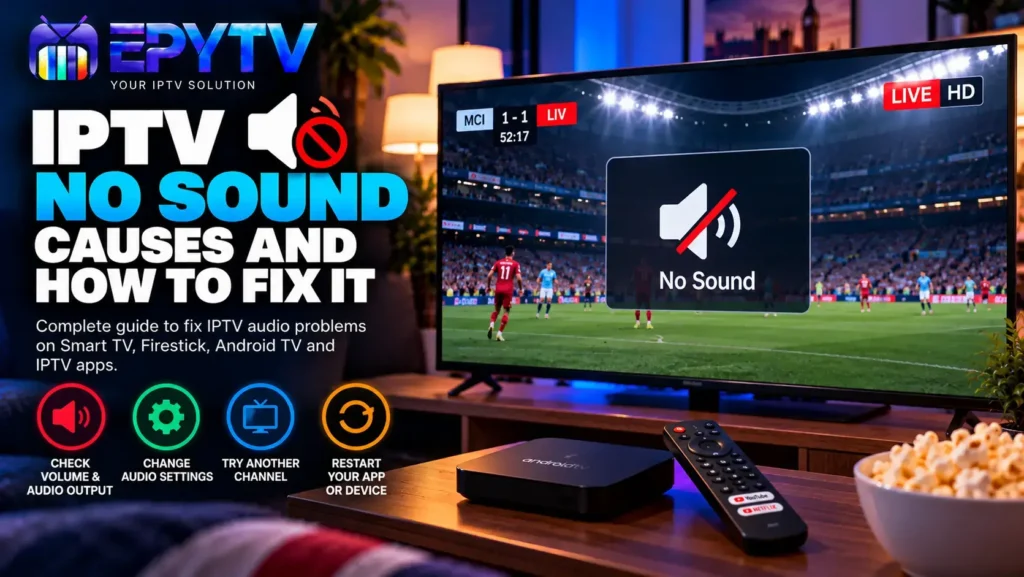
If your IPTV has picture but no sound, the problem is usually related to the device, IPTV app, audio settings or the specific channel you are watching. In some cases, the solution can be as simple as increasing the volume or restarting the app. In others, you may need to change an audio setting or try another player.
READY TO GET STARTED?
Choose Your IPTV UK Plan
Set up your IPTV service on your compatible device and enjoy a simple viewing experience.
Easy Setup • Secure Payment • Flexible Viewing
Why Does IPTV Have No Sound?
When an IPTV stream displays the picture correctly but there is no audio, it does not necessarily mean that your internet connection is causing the problem. Video and audio are handled separately, so it is possible to have a perfectly normal picture while the audio has stopped working.
The problem can come from several places, including your TV volume, device audio output, IPTV application, audio track, channel source or compatibility between the stream and your device.
Before changing complicated settings, start with the simple checks below. They can often identify the problem within a few minutes.
IPTV No Sound: Quick Checks First
| Problem | First Thing to Check |
|---|---|
| No sound anywhere | TV/device volume and audio output |
| One channel has no sound | Try another channel |
| Sound stopped suddenly | Restart the IPTV app |
| Picture and sound both freeze | Check the internet connection |
| Sound works in other apps | Check the IPTV player settings |
1. Check Your TV or Device Volume
The first thing to check is also the easiest. Make sure the TV or streaming device is not muted and that the volume is high enough to hear.
Use the physical remote control to increase the volume. If your TV has an on-screen volume indicator, check whether the mute icon is active.
If you are using an external device such as a Firestick or Android TV box, also check whether the audio is being controlled by the TV, soundbar or external receiver.
It is possible for the IPTV application to be working normally while the device itself is sending audio somewhere else.
2. Test Another Channel
This is one of the most important checks when IPTV has no sound.
Change to several different channels and see whether the problem remains. If most channels have sound but one particular channel is silent, your TV and IPTV app are probably not the main problem.
The individual stream may simply have an audio issue.
Try a few live channels, then test a movie or series if your service provides them. This helps you determine whether the problem affects the entire application or only a specific stream.
3. Restart the IPTV App
IPTV applications can occasionally experience temporary playback problems. Closing the app completely and opening it again can restore audio.
Do not simply return to the home screen. If your device allows it, close the application from the recent apps menu or force stop it.
Then launch the IPTV player again and test the same channel.
If you regularly experience problems with IPTV applications, our guide to the best IPTV apps in the UK can also help you compare different players.
4. Restart Your Streaming Device
If restarting the IPTV app does not help, restart the device itself.
This applies to:
- Smart TVs
- Amazon Fire TV devices
- Android TV devices
- Google TV devices
- Windows PCs
- Other compatible streaming devices
A complete restart can clear temporary software problems and reload the audio system.
After restarting, open the IPTV app again and test a few channels.
5. Check the Audio Output
One common reason for IPTV no sound is that the device is using the wrong audio output.
For example, your TV may be configured to send sound to:
- Internal TV speakers
- A soundbar
- Bluetooth headphones
- An AV receiver
- An HDMI audio device
Open your device’s sound settings and check which output is selected.
If you normally use the TV speakers, select the internal speaker option and test IPTV again.
6. Check the IPTV Player Audio Settings
Some IPTV players provide additional audio options inside the playback screen.
Depending on the application, you may see options for audio tracks, audio output, decoder settings or other playback controls.
Open the player while a channel is playing and look for an audio or speaker icon.
If more than one audio track is available, select another track and check whether the sound returns.
7. Try Another Audio Track
Some channels can contain multiple audio tracks. One may be unavailable while another works correctly.
If your IPTV player shows an audio-track menu, open it and check the available options.
This can be particularly useful when watching channels that provide different languages or audio versions.
If changing the audio track restores the sound, the issue was probably related to the selected audio stream rather than your TV or internet connection.
8. IPTV Has Picture but No Sound on Firestick
If IPTV works normally on your Fire TV device but there is no sound, start with the basic checks.
- Increase the TV volume.
- Check that the TV is not muted.
- Restart the IPTV application.
- Restart the Fire TV device.
- Check the TV audio output.
- Test another IPTV channel.
- Test another application on the Fire TV device.
If other applications also have no sound, the issue is more likely related to the Fire TV or television rather than the IPTV application.
You can also check our complete IPTV Firestick setup guide for additional configuration and troubleshooting steps.
9. IPTV No Sound on Smart TV
Smart TV users can experience audio problems for several different reasons. The IPTV app may be working correctly while the television’s audio configuration is causing the problem.
First, test another application on the same TV. For example, open another streaming service and play a video.
If there is sound in the other application, return to IPTV and test another channel.
If there is no sound anywhere, check the TV’s sound output and connected devices.
Our Smart TV IPTV setup guide covers the basic installation and configuration process in more detail.
10. IPTV No Sound on Android TV or Google TV
Android TV and Google TV devices provide several audio configuration options, especially when connected to external speakers or soundbars.
Check the device’s sound settings and make sure the selected output matches your setup.
If the device is connected to a soundbar through HDMI, for example, check that the soundbar is switched on and using the correct input.
You should also test another application. If other apps have normal audio, concentrate on the IPTV player and the individual stream.
11. Clear the IPTV App Cache
If your IPTV player has been working correctly and suddenly develops audio problems, clearing its cache may help.
The exact steps depend on the device and application, but the option is commonly found under the application’s settings.
Clearing the cache normally removes temporary application data rather than your entire device configuration.
After clearing it, open the IPTV app again and allow the playlist and programme information to load.
12. Update the IPTV Application
An outdated application can sometimes cause playback problems, particularly after changes to the operating system or device.
Check whether an update is available for your IPTV player.
After updating, restart the application and test several channels.
If the problem started immediately after an application update, it may also be worth testing another compatible IPTV player to determine whether the issue is application-specific.
13. Check Whether the Problem Is Your Internet
A slow or unstable connection can affect IPTV playback, but internet speed is not always the cause of an audio-only problem.
If the picture is perfectly stable while the audio disappears, check the application and audio settings first.
If both picture and sound stop at the same time, your network connection becomes more relevant.
For more information, see our guide to internet speed for IPTV.
14. Wi-Fi vs Ethernet for IPTV
Wi-Fi is convenient, but its stability can depend on distance, walls, interference and other connected devices.
If your streaming device supports Ethernet, connecting it directly to your router can help you determine whether Wi-Fi is contributing to the problem.
| Connection | Typical Advantage |
|---|---|
| Ethernet | Usually more consistent for a fixed TV setup |
| 5 GHz Wi-Fi | Good speeds at shorter distances |
| 2.4 GHz Wi-Fi | Generally better range but can be more congested |
For more troubleshooting advice, see our guide on IPTV buffering and streaming problems.
15. IPTV Sound Is Delayed
Sometimes the problem is not a complete loss of sound. Instead, the audio may be slightly ahead of or behind the video.
This is usually called audio-video synchronisation or lip-sync.
If your IPTV player provides an audio delay or synchronisation option, adjust it gradually while the video is playing.
Different players use different names for this setting, so check the playback controls or application settings.
16. IPTV Has Sound but the Picture Is Poor
If the sound works but the picture quality is poor, you are dealing with a different type of playback problem.
The possible causes can include the stream quality, bitrate, device performance or network stability.
Read our guide to IPTV picture quality and SD, HD, Full HD and 4K for more information.
17. M3U or Xtream Codes and Audio Problems
The login method itself does not normally determine whether your TV speakers produce sound. However, the playlist or service source can contain different streams with different audio characteristics.
If you are using an M3U playlist and a particular channel has no audio, test another channel first.
If you are using Xtream Codes, check whether the same issue appears across multiple channels and categories.
Our guide to M3U vs Xtream Codes explains the differences between the two common setup methods.
18. One Channel Has No Sound but Everything Else Works
If only one channel has no audio while all other channels work correctly, there is usually no reason to change your entire device configuration.
Try the following:
- Change to another channel.
- Return to the original channel.
- Check the available audio tracks.
- Restart the IPTV player.
- Test the same channel later.
If other channels continue working normally, the problem may be limited to that particular stream.
19. IPTV No Sound: Troubleshooting Checklist
| Step | What to Do |
|---|---|
| 1 | Check volume and mute |
| 2 | Test another channel |
| 3 | Restart the IPTV app |
| 4 | Restart your device |
| 5 | Check audio output |
| 6 | Try another audio track |
| 7 | Clear app cache |
| 8 | Update or test another player |
20. When Should You Contact Your IPTV Provider?
If you have checked the TV, device, application and internet connection and the same channels continue to have no audio, it may be worth contacting your IPTV provider.
Before contacting support, collect a few useful details:
- The device you are using
- The IPTV application name
- The affected channel or channels
- Whether other channels have sound
- Whether the problem happens on another device
- Whether restarting the application changes anything
These details can make troubleshooting much easier because they help identify whether the problem is local to your device or related to a particular stream.
Can IPTV No Sound Be Caused by the TV?
Yes. If other applications also have no audio, the television or connected sound system should be checked before changing IPTV settings.
Test another video application on the same TV. If it also has no sound, check the TV’s volume, mute status, audio output and connected speakers.
Can IPTV No Sound Be Caused by the App?
Yes. If other applications have normal audio and the problem only appears inside one IPTV player, the application may be responsible.
Restarting, updating, clearing the cache or testing another compatible player can help identify the cause.
Can IPTV Work Without Sound Because of the Stream?
Yes. If one channel has picture but no audio while other channels work normally, the issue may be specific to that stream or its audio track.
Testing several channels is therefore one of the quickest ways to narrow down the problem.
FAQ: IPTV No Sound
Why does my IPTV have picture but no sound?
Check the TV volume, audio output, IPTV player settings and the selected audio track. Also test another channel to see whether the issue affects the entire service.
Why does IPTV have no sound on my Firestick?
Check the Fire TV volume and TV audio output, then restart both the IPTV app and Fire TV device. Test another application to determine whether the problem is specific to IPTV.
Why does only one IPTV channel have no sound?
If other channels work normally, the problem may be limited to that particular stream. Try another channel and check whether multiple audio tracks are available.
Why is IPTV sound delayed?
Audio delay can be related to the IPTV player, device or stream. If your player has an audio synchronisation option, adjust it gradually while watching the video.
Does internet speed affect IPTV sound?
An unstable connection can affect overall playback, especially when both video and audio stop or buffer. However, audio-only problems are often related to the player, device or stream.
Should I change my IPTV app if there is no sound?
If sound works correctly in other applications and the problem only happens with one IPTV player, testing another compatible player can help determine whether the application is responsible.
Final Thoughts
When IPTV has no sound, there is no need to immediately assume that your internet connection or television is broken. Start with the basics: check the volume, test another channel, restart the IPTV app and check the audio output.
If the issue continues, look at the IPTV player’s audio settings, try another audio track, clear the app cache and test another compatible player. When only one channel is affected, the problem may be limited to that stream.
For users setting up IPTV UK, keeping the device, IPTV player and network properly configured can make troubleshooting much easier.
For more setup and troubleshooting guides, you can also return to the EpyTV.
READY TO GET STARTED?
Choose Your IPTV UK Plan
Set up your IPTV service on your compatible device and enjoy a simple viewing experience.
Easy Setup • Secure Payment • Flexible Viewing