
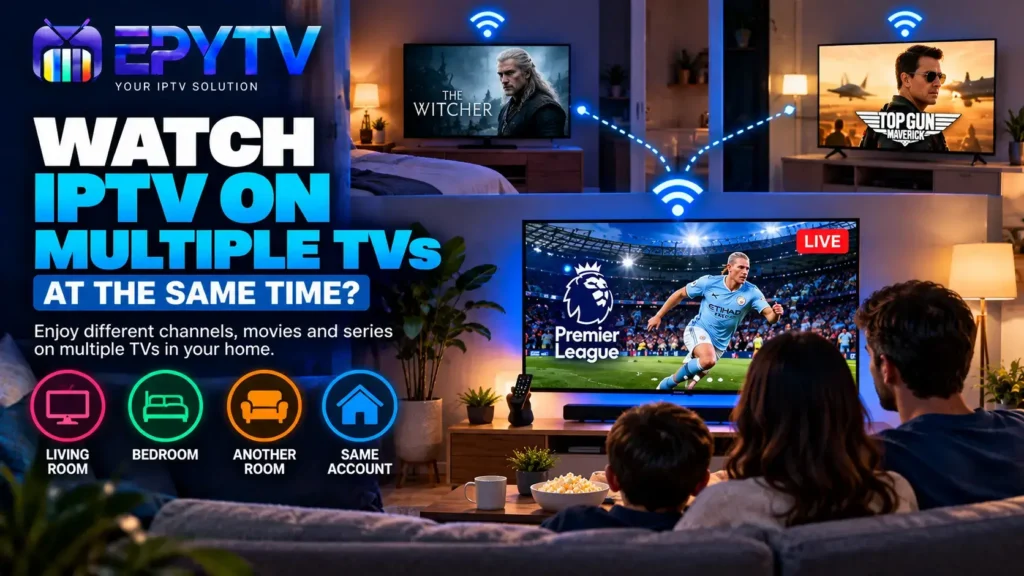
Can you watch IPTV on multiple TVs at the same time? The answer depends on how your IPTV UK service handles simultaneous connections, the IPTV apps you use and the devices connected to your network. If you have more than one TV at home, you may want to watch different content in different rooms without constantly switching devices. This guide explains how multiple-TV IPTV setups work, what you should check before using several TVs and how to avoid common streaming problems.
READY TO GET STARTED?
Choose Your IPTV UK Plan
Set up your IPTV service on your compatible device and enjoy a simple viewing experience.
Easy Setup • Secure Payment • Flexible Viewing
Can You Use IPTV on Multiple TVs?
Yes, it is possible to use IPTV on multiple TVs, but the important question is whether your IPTV service allows more than one active connection at the same time.
Installing the same IPTV application on two or more televisions does not automatically mean that the same account can stream on all of them simultaneously.
For example, you could have IPTV installed on a TV in the living room and another TV in a bedroom. Whether both can play content at the same time depends on the connection limits of the service and the credentials you are using.
This is why it is important to understand the difference between installing IPTV on multiple devices and using multiple simultaneous connections.
Multiple Devices vs Multiple Simultaneous Connections
These two terms are often confused.
You may be able to install an IPTV player on several devices without any problem. However, the service may limit how many devices can actively stream at the same time.
| Setup | What It Means |
|---|---|
| One account on one TV | Single active connection |
| Same account installed on several TVs | Several devices may be configured, depending on the service |
| Two TVs streaming at once | Requires support for multiple simultaneous connections |
| Several TVs using separate connections | Depends on the service and subscription arrangement |
How Does IPTV Work on Two TVs?
There are several ways to set up IPTV across two televisions.
The simplest setup is to have an IPTV-compatible application installed on each TV. Each device then connects to the IPTV service using the appropriate login or playlist information.
For example, you could have:
- A Smart TV in the living room.
- A Fire TV Stick connected to a bedroom TV.
- A Google TV device connected to another television.
- An IPTV-compatible application on each device.
The exact setup depends on the devices you own and the IPTV player you choose.
If you are setting up IPTV for the first time, our IPTV on Smart TV guide explains the basic process.
Can Two TVs Watch Different Channels at the Same Time?
This is where simultaneous connection limits become important.
If your IPTV service supports only one active connection, trying to stream different content on two TVs at the same time may not work as expected.
Depending on how the service handles connections, the second stream may fail to load, one of the devices may disconnect or the service may stop one of the active sessions.
If multiple simultaneous connections are supported, two TVs may be able to stream different channels or content independently.
The important point is that the IPTV application itself does not determine the account’s connection limit. That is normally controlled by the service providing the IPTV access.
What Do You Need for IPTV on Multiple TVs?
A multi-TV setup does not necessarily require complicated equipment. In many homes, each television simply needs a compatible device or IPTV application and a reliable internet connection.
Here are the main things to check:
- Each TV needs a compatible IPTV player or streaming device.
- You need valid IPTV access for the service you are using.
- The service must support the number of simultaneous connections you need.
- Your home network needs enough capacity for multiple streams.
- Each device should have a stable connection.
Internet Speed for Multiple TVs
Internet speed becomes more important when several TVs are streaming at the same time.
One stream may work perfectly while multiple streams put more demand on the home network.
As a general guide, higher-quality video requires more bandwidth, and multiple active streams increase the total amount of data being transferred.
| Video Quality | General Speed Guideline | Multiple TVs |
|---|---|---|
| SD | Around 5 Mbps+ | Lower bandwidth requirement |
| HD | Around 10 Mbps+ | More bandwidth required |
| Full HD | Around 15 Mbps+ | Higher total bandwidth |
| 4K | Around 25 Mbps+ | Can require significantly more bandwidth |
These are general guidelines rather than guarantees. The actual requirement depends on the stream, bitrate, network conditions and other devices using your connection.
For a more detailed explanation, read our guide to IPTV internet speed.
Does Wi-Fi Work for Multiple TVs?
Wi-Fi can work well for multiple IPTV devices, but the quality of the wireless connection matters.
A TV located far from the router may have a weaker signal than a TV in the same room as the router. Walls, distance, interference and other connected devices can also affect wireless performance.
If one TV works perfectly while another keeps buffering, compare the network connection of both devices.
Where possible, an Ethernet connection can provide a more stable connection for a television or streaming device.
Can You Use IPTV on a Smart TV and Firestick at the Same Time?
Yes, this type of setup is possible when the service and connection arrangement allow simultaneous streaming.
For example, one TV could use its built-in IPTV application while another television uses a Fire TV Stick.
The devices do not need to be the same. What matters is that the IPTV player works on each device and that your service supports the required active connections.
If you use Firestick, our IPTV on Firestick guide explains how to set up the device.
Can You Use IPTV on Three TVs?
A three-TV setup is possible in principle, but you need to pay more attention to connection limits and network capacity.
For example, a home could have:
- TV 1 in the living room.
- TV 2 in the bedroom.
- TV 3 in another room.
Each TV could have its own compatible IPTV application or streaming device.
However, having three applications installed does not automatically mean that all three TVs can stream simultaneously. You should check the connection terms of the IPTV service before setting up several active streams.
What Happens If You Exceed the Connection Limit?
If a service allows only a certain number of simultaneous connections, opening additional streams may cause problems.
Possible symptoms can include:
- A stream refusing to start.
- One device being disconnected.
- Channels stopping unexpectedly.
- Login or connection errors.
- One stream replacing another active session.
The exact behaviour depends on how the IPTV service manages connections.
If you experience this, stop the extra streams first and check how many simultaneous connections your service supports.
Multiple TVs and IPTV Buffering
Buffering can become more noticeable when several devices are streaming at once.
However, multiple TVs are not automatically the cause of buffering. Other factors can include Wi-Fi quality, device performance, network congestion and problems with the particular stream.
If one TV buffers while another works normally, test the affected device separately.
You can also read our detailed guide on IPTV buffering and how to fix it.
How to Reduce Buffering on Multiple TVs
If you are using IPTV on several televisions, there are a few practical steps that can help keep the network stable.
Use a Strong Wi-Fi Connection
Try to keep your streaming devices within a reasonable range of the router. If the signal is weak, consider improving your home network rather than simply increasing the video quality.
Use Ethernet Where Possible
An Ethernet connection can be useful for TVs or streaming devices that are close enough to the router for a wired connection.
Reduce Unnecessary Network Traffic
Large downloads, cloud backups and other heavy network activity can compete with video streaming.
Check Your Internet Speed
Run a speed test from the device or location where you experience problems. A speed test close to the router may not accurately represent the connection available in another room.
Test One Device at a Time
If you are troubleshooting a multi-TV setup, temporarily stop the other streams. If the problem disappears, the issue may be related to network capacity or simultaneous connection limits.
Can Different TVs Use Different IPTV Apps?
Yes. Different TVs can use different IPTV players depending on their operating systems.
For example, one device may use a Smart TV IPTV application while another uses a Fire TV or Google TV application.
This can be useful when different members of a household prefer different interfaces.
However, always check that the application you choose is compatible with your device and supports the login or playlist method provided by your service.
Our guide to the best IPTV apps in the UK compares several common IPTV player options.
M3U vs Xtream Codes on Multiple TVs
The setup method can also vary between devices.
Some IPTV players accept an M3U playlist, while others allow users to enter Xtream Codes login information.
If you are using several different devices, you may find that one application has a different setup process from another.
The important thing is to use the correct credentials or playlist information for the compatible player.
For a detailed comparison, see M3U vs Xtream Codes: Which IPTV Setup Method Is Better?.
EPG on Multiple TVs
EPG, or Electronic Programme Guide, is separate from the number of TVs you can use.
If your IPTV player supports EPG data, you may be able to display programme information on each compatible device.
However, the exact EPG behaviour depends on the IPTV application and the data provided by the service.
If your EPG is missing or showing incorrect information, see our guide to IPTV EPG UK.
Multiple TVs vs Casting From One Device
There is another option if you do not need independent streams: casting or mirroring content from one device to another screen.
In this setup, your phone, tablet or computer acts as the source while the television displays the content.
This is different from having independent IPTV applications running on multiple TVs.
| Method | Main Advantage | Limitation |
|---|---|---|
| Separate IPTV apps | Each TV can operate independently | May require multiple simultaneous connections |
| Casting | Useful for displaying content from a phone or tablet | The source device remains involved |
| HDMI connection | Simple wired display connection | Less convenient for multiple rooms |
What Is the Best Setup for a Family?
There is no single setup that works for every household.
If two people regularly want to watch different content at the same time, independent IPTV devices can be more practical than sharing one screen.
For example, one person could watch content on the living room Smart TV while another uses a Firestick in the bedroom.
The key is to make sure your IPTV service and home network can handle the number of active streams you plan to use.
Common Problems With IPTV on Multiple TVs
| Problem | Possible Reason |
|---|---|
| Second TV will not connect | Connection limit or setup problem |
| Both TVs buffer | Network capacity or Wi-Fi issue |
| One TV disconnects | Possible simultaneous connection restriction |
| One TV works, another does not | Device, app or network difference |
| Channels load slowly | Connection or stream issue |
How to Troubleshoot a Multi-TV IPTV Setup
If IPTV works on one TV but not another, do not immediately assume that your account is the problem.
Use this simple troubleshooting process:
- Check that the second TV has a working internet connection.
- Confirm that the IPTV application is installed correctly.
- Check that the login details or playlist are correct.
- Restart the IPTV application.
- Restart the streaming device or TV.
- Test the same content on the first TV.
- Stop the first stream and test the second TV again.
- Check the simultaneous connection limit of your service.
This process helps determine whether the problem comes from the device, network, application or connection limit.
Can IPTV Be Used on TVs in Different Rooms?
Yes. A common home setup is to have IPTV available in different rooms.
For example, you might have a Smart TV in the living room and a streaming device in the bedroom.
Each device can connect to the home network and use a compatible IPTV application.
The main things to consider are the network connection in each room and whether your IPTV service supports the number of active connections you require.
Should You Use One Account or Separate Connections?
This depends on the service you are using and how many simultaneous streams you need.
If only one TV is normally used at a time, a single connection may be enough.
If several members of the household want to watch different content simultaneously, you should look for an arrangement that explicitly supports the required number of active connections.
Do not assume that installing an IPTV application on several TVs automatically provides several simultaneous streams.
FAQ: IPTV on Multiple TVs
Can I watch IPTV on two TVs at the same time?
It can be possible, but it depends on whether the IPTV service supports two simultaneous connections. Installing the application on both TVs does not automatically guarantee simultaneous streaming.
Can I use IPTV on three TVs?
Yes, a three-TV setup can be possible when the service, devices and home network support the required number of active streams.
Can two TVs watch different channels?
Yes, if the IPTV service allows multiple simultaneous connections. Each compatible device can then play its own content.
Does using IPTV on multiple TVs require faster internet?
Usually, multiple active streams require more total bandwidth than one stream. The amount depends on video quality, bitrate and other network activity.
Why does one TV work but the second TV does not?
The second device may have a network, application or configuration problem. It could also be related to the simultaneous connection limit of the IPTV service.
Can I use different IPTV apps on different TVs?
Yes. Different televisions can use different compatible IPTV players. The important part is that each application supports the setup method and device you are using.
Will using IPTV on multiple TVs cause buffering?
It can increase network demand, but buffering can also come from Wi-Fi quality, device performance or the stream itself. Test each device separately to identify the cause.
Final Thoughts
Watching IPTV on multiple TVs at the same time can be a practical solution for households where different people want to watch different content.
The most important thing to understand is the difference between having IPTV installed on several devices and having several active connections. Your IPTV service needs to support the number of simultaneous streams you want to use.
Your home network is also important. Multiple HD or 4K streams can require more bandwidth, so a stable internet connection and good Wi-Fi coverage can make a noticeable difference.
Whether you use Smart TVs, Firesticks, Google TV devices or other compatible hardware, start by checking your connection limits and then make sure each device is properly configured.
For more IPTV setup and troubleshooting guides, you can also explore our articles on IPTV not working, IPTV on Google TV and IPTV on iPhone and iPad.
READY TO GET STARTED?
Choose Your IPTV UK Plan
Set up your IPTV service on your compatible device and enjoy a simple viewing experience.
Easy Setup • Secure Payment • Flexible Viewing