
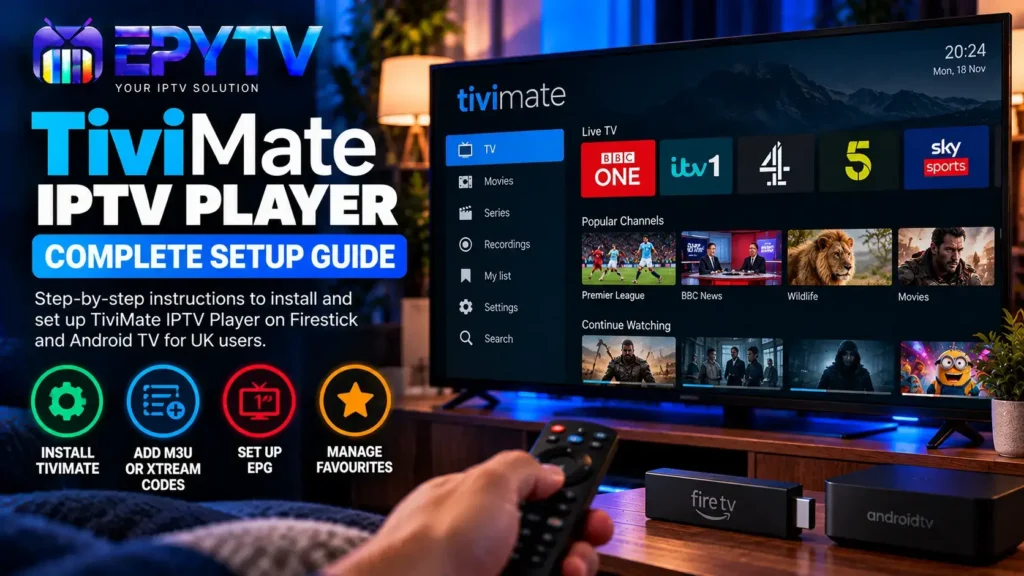
TiviMate IPTV Player is a popular choice for watching IPTV on Android TV, Fire TV devices and other compatible Android-based platforms. The app gives you a TV-friendly interface where you can add your own IPTV playlist, organise channels, use an electronic programme guide and customise the way your content is displayed.
READY TO GET STARTED?
Choose Your IPTV UK Plan
Set up your IPTV service on your compatible device and enjoy a simple viewing experience.
Easy Setup • Secure Payment • Flexible Viewing
What Is TiviMate IPTV Player?
TiviMate is an IPTV media player designed primarily for large screens and remote-control navigation. It does not provide television channels or an IPTV subscription by itself. Instead, you add your own playlist or login details from a service you are authorised to use.
The application supports common IPTV playlist methods such as M3U and Xtream Codes, while also offering features such as an EPG, favourites, multiple playlists and other playback options.
This makes TiviMate particularly useful for people who want a more traditional TV-style interface instead of navigating IPTV content through a basic media player.
Which Devices Can Use TiviMate?
TiviMate is designed for Android TV and remote-control devices. Depending on the device and its software, this can include Android TV televisions, Android TV boxes, Google TV devices and compatible Fire TV hardware.
| Device | TiviMate Setup |
|---|---|
| Android TV | Install through a compatible app store |
| Google TV | Install from Google Play when available |
| Fire TV / Firestick | Availability depends on the device and installation method |
| Android TV Box | Install through the available app store or supported method |
| iPhone / iPad | Not designed for iOS |
| Windows / Mac | Not a native desktop application |
What Do You Need Before Installing TiviMate?
Before starting the setup, make sure you have the following:
- A compatible Android TV, Google TV or Fire TV device
- A stable internet connection
- The TiviMate application
- Your IPTV playlist or login details
- An M3U URL or Xtream Codes credentials, depending on your service
- EPG information if your service provides a separate EPG source
If you are still choosing a device, our guides for IPTV on Firestick and IPTV on Android TV cover the main setup differences.
How to Install TiviMate on Android TV
The easiest method is to use the official app store available on your compatible Android TV device.
Step 1: Open Google Play Store
From the Android TV home screen, open the Google Play Store.
Step 2: Search for TiviMate
Use the search function and type:
TiviMate IPTV Player
When several results appear, check the application name and developer information before installing anything.
Step 3: Install the Application
Select the TiviMate IPTV Player listing and choose Install.
Wait for the installation to finish and then select Open.
Step 4: Open TiviMate
When TiviMate starts for the first time, you will need to add a playlist before you can browse your channels.
The exact options shown can vary slightly depending on the application version and device.
How to Install TiviMate on Google TV
Google TV uses the Android TV platform underneath, so the general TiviMate setup is very similar.
- Open the Google Play Store.
- Search for TiviMate IPTV Player.
- Check the application listing.
- Select Install.
- Open TiviMate after installation.
If the application does not appear in your store, check whether your device is actually running a compatible Android TV version and whether the application is available for that device.
For a complete Google TV guide, visit our article on IPTV on Google TV.
How to Set Up TiviMate With Xtream Codes
Xtream Codes is one of the common ways an IPTV service can provide login information. If your provider gives you a username, password and server URL, you can normally use the Xtream Codes option in a compatible IPTV player.
Start by opening TiviMate and selecting the option to add a new playlist.
Step 1: Select Xtream Codes
Choose the Xtream Codes login method when it is available.
Step 2: Enter Your Server Information
Enter the server URL supplied by your IPTV service.
Step 3: Enter Your Username
Type the username exactly as supplied.
Step 4: Enter Your Password
Enter your password carefully and check for spaces or typing mistakes.
Step 5: Load the Playlist
Submit the details and allow TiviMate time to load the available categories and channels.
If you are not sure whether M3U or Xtream Codes is better for your setup, read our detailed M3U vs Xtream Codes guide.
How to Add an M3U Playlist to TiviMate
An M3U playlist is another common method for loading IPTV content into a player.
If your service provides an M3U URL, open the playlist section in TiviMate and select the M3U option.
You can then enter the playlist URL supplied by your service.
Make sure you copy the complete URL. A missing character, space or incorrect address can prevent the playlist from loading correctly.
How to Set Up the EPG in TiviMate
EPG stands for Electronic Programme Guide. It provides programme information such as channel names, current programmes and upcoming broadcasts.
If your IPTV service automatically supplies EPG information, TiviMate may load it together with your playlist.
If you receive a separate XMLTV or EPG URL, you may need to add it through the playlist or EPG settings.
Once the EPG is loaded, TiviMate can display the available programme information in a TV-guide style interface.
For more information, read our guide to IPTV EPG UK.
How to Add Channels to Favourites
If your playlist contains a large number of channels, favourites can make everyday navigation much easier.
When you find a channel that you watch regularly, use the application’s favourite option to add it to your favourites list.
You can then access your preferred channels without scrolling through the entire playlist every time.
How to Organise IPTV Channels in TiviMate
Large IPTV playlists can contain many categories. TiviMate gives users tools to make navigation more manageable.
Depending on your setup and application version, you can work with:
- Channel groups
- Favourite channels
- Multiple playlists
- Search
- EPG categories
- Custom display settings
Instead of keeping every channel visible, use the available organisation features to make your most-used categories easier to reach.
TiviMate EPG Not Working
If the TV guide is empty or programme information is missing, first check whether the playlist actually includes EPG data.
If your provider gives you a separate EPG URL, check that it has been entered correctly.
You can also try refreshing the guide and restarting TiviMate.
| EPG Problem | What to Check |
|---|---|
| No programme information | Check the EPG source |
| Only some channels have EPG | Check channel-to-EPG matching |
| Wrong programme times | Check time and EPG settings |
| Guide stopped updating | Refresh the EPG and check the source |
TiviMate Channels Are Not Loading
If TiviMate opens normally but your channels do not appear, check the playlist information first.
Common causes include:
- Incorrect username or password
- Incorrect server URL
- Expired or unavailable playlist
- Incorrect M3U URL
- Internet connection problems
- Temporary problems with the playlist source
Try opening another category or refreshing the playlist. If nothing loads, check your login details before changing other settings.
TiviMate Is Buffering
Buffering is not always caused by TiviMate itself. Network stability, Wi-Fi conditions, device performance and the stream source can all affect playback.
Start by testing another channel. If only one stream buffers, the issue may be limited to that stream.
If every channel buffers, test the internet connection and restart your router and streaming device.
Our complete guide to IPTV buffering explains the most common causes and fixes.
TiviMate vs Other IPTV Players
TiviMate is not the only IPTV player available. Different applications can be better suited to different devices and preferences.
| Feature | TiviMate | Other IPTV Players |
|---|---|---|
| TV-focused interface | Yes | Depends on the app |
| M3U support | Yes | Common |
| Xtream Codes | Yes | Depends on the app |
| EPG | Yes | Depends on the app |
| Large-screen navigation | Designed for it | Varies |
If you want to compare several players before choosing one, check our Best IPTV Apps UK guide.
TiviMate Free vs Premium
TiviMate has free and premium functionality. The exact features and pricing can change, so it is best to check the current application information before purchasing anything.
The important distinction is that paying for TiviMate unlocks application features. It does not provide an IPTV subscription or television channels.
| Option | What It Means |
|---|---|
| Free version | Basic TiviMate functionality |
| Premium | Additional application features |
| IPTV subscription | Separate service or playlist providing the content |
How to Improve TiviMate Performance
If playback is not as smooth as expected, there are several basic things worth checking.
- Use a stable internet connection.
- Move the router closer to the streaming device if using Wi-Fi.
- Use Ethernet where practical.
- Restart the device occasionally.
- Keep the application updated.
- Remove applications you no longer use if storage is limited.
- Test different channels when diagnosing buffering.
Internet speed is also important, especially when several devices are streaming at the same time. Our guide to IPTV internet speed explains the main factors to consider.
TiviMate Not Working: Quick Fixes
| Problem | Possible Fix |
|---|---|
| App will not open | Restart the device and check for updates |
| Playlist is empty | Check login or M3U details |
| Channels buffer | Test connection and another channel |
| EPG is blank | Check and refresh EPG settings |
| Channels disappear | Refresh the playlist |
| Playback has problems | Restart the app and test another stream |
Is TiviMate an IPTV Service?
No. This is an important distinction.
TiviMate is a media player. It does not automatically provide live television channels, movies or series. You need your own compatible playlist or service details to load content into the application.
This also means that installing TiviMate alone does not give you access to IPTV channels.
Is TiviMate Legal?
The application itself is a media player. What you watch through an IPTV player depends on the source of the content and whether you have the necessary rights or permission to access it.
Always use IPTV services and playlists that you are legally entitled to use and follow the applicable laws in your country.
FAQ About TiviMate IPTV Player
Is TiviMate free?
TiviMate offers free functionality as well as premium features. The available features and pricing can change, so check the current application listing before purchasing.
Does TiviMate include IPTV channels?
No. TiviMate is a media player and does not provide channels or an IPTV subscription. You need to add your own compatible playlist or service credentials.
Can I use M3U with TiviMate?
Yes. TiviMate supports M3U playlists. Enter the M3U URL supplied by your IPTV service when adding a playlist.
Can I use Xtream Codes with TiviMate?
Yes. TiviMate supports Xtream Codes as one of its common playlist setup methods.
Does TiviMate support EPG?
Yes. TiviMate supports an electronic programme guide, allowing compatible EPG information to be displayed alongside your channels.
Can I install TiviMate on iPhone?
TiviMate is designed for Android TV and large-screen Android devices rather than iPhone or iPad. For Apple devices, you will need a different IPTV player.
Can I use TiviMate on Firestick?
Fire TV compatibility and installation options can depend on the specific device and current app availability. Check your device’s available app store and use supported installation methods.
Why are my TiviMate channels not loading?
Check your playlist credentials, internet connection and playlist status. If only some channels are missing, the problem may be limited to those particular streams.
Final Thoughts
TiviMate IPTV Player is a useful option for users who want a clean TV-focused interface for their IPTV playlists. The setup is straightforward once you have the correct playlist details, and features such as EPG, favourites, search and channel organisation can make large playlists easier to manage.
If you are setting up IPTV UK, TiviMate can be one option to consider on compatible Android TV and Fire TV hardware.
For more guides covering devices, IPTV apps and troubleshooting, visit the IPTV UK Service.
READY TO GET STARTED?
Choose Your IPTV UK Plan
Set up your IPTV service on your compatible device and enjoy a simple viewing experience.
Easy Setup • Secure Payment • Flexible Viewing