
READY TO GET STARTED?
Choose Your IPTV UK Plan
Set up your IPTV service on your compatible device and enjoy a simple viewing experience.
Easy Setup • Secure Payment • Flexible Viewing
Can You Use IPTV on a Samsung Smart TV?
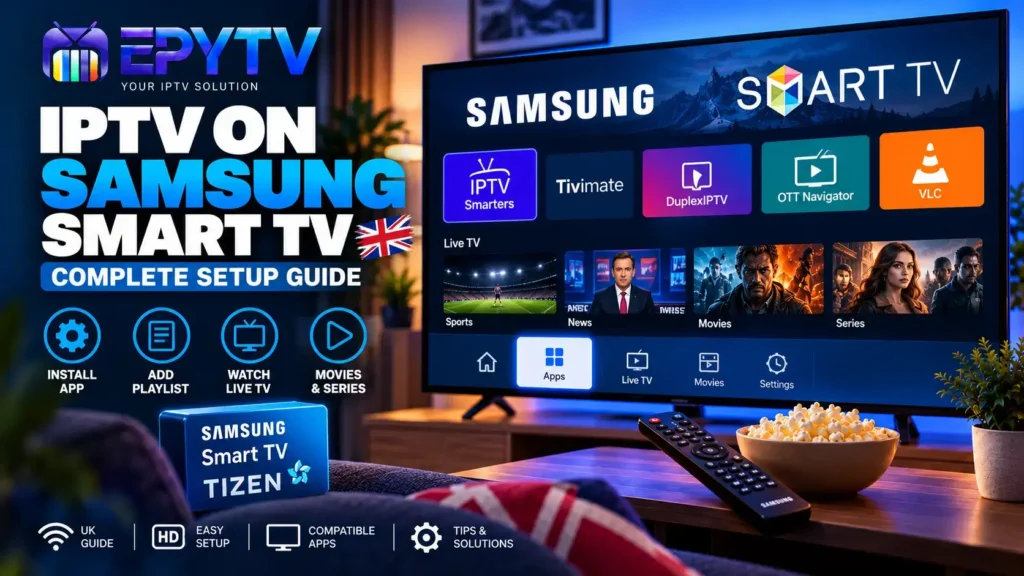
Yes. Samsung Smart TVs can run IPTV player applications available through the TV’s app ecosystem. The exact apps you can install depend on your Samsung TV model, Tizen version and region.
For users in the UK, the basic process is straightforward: connect the Samsung TV to the internet, open the Apps section, search for a compatible IPTV player, install it and then enter the login or playlist details supplied with your IPTV service.
One important point is that an IPTV player is normally just a player. It does not automatically provide TV channels or programmes. You need a legitimate IPTV subscription or your own authorised playlist or media source.
What You Need Before Installing IPTV on Samsung TV
Before starting the setup, it is worth checking a few things. This can prevent common problems later, especially if an application does not appear in the Samsung Apps section.
| Requirement | Why It Matters |
|---|---|
| Samsung Smart TV | The TV needs to support the required application. |
| Internet connection | IPTV streaming requires a stable internet connection. |
| Samsung account | A Samsung account may be required to access Smart Hub and install apps. |
| IPTV player | You need a compatible application to load your IPTV service. |
| IPTV login or playlist | This is used to load your authorised IPTV content. |
Step 1: Connect Your Samsung TV to the Internet
The first step is making sure your Samsung Smart TV has a stable internet connection.
You can normally connect through Wi-Fi or, if your setup allows it, an Ethernet cable. Ethernet can be useful when the television is close enough to your router because a wired connection can reduce problems caused by weak Wi-Fi.
If you are using Wi-Fi, try to keep the TV reasonably close to your router. Other devices using the same connection can also affect available bandwidth.
Step 2: Open the Apps Section on Samsung TV
Once the TV is connected to the internet, press the Home button on your Samsung remote.
From the home screen, open the Apps section. Samsung provides a search function that allows you to look for applications by name.
Search for the IPTV player you want to use. If the application is available for your particular TV and region, you should be able to open its app page and select Install.
After installation, you can normally add the application to the home screen to make it easier to access later.
Step 3: Choose an IPTV App for Samsung Smart TV
There are different IPTV player applications available for Samsung Smart TVs. They can have different interfaces and features, so the best choice depends on how you want to use your IPTV service.
For example, some players are designed around simple channel lists, while others provide features such as EPG support, favourites, categories, subtitles or VOD organisation.
| Feature | Why It Can Be Useful |
|---|---|
| Live TV categories | Makes it easier to organise and browse channels. |
| EPG support | Provides programme information when compatible guide data is available. |
| Favourites | Lets you keep frequently watched channels in one place. |
| Playlist support | Allows the player to load a compatible IPTV playlist. |
| Xtream Codes login | Can provide a simpler login method when supported by the player. |
If you are comparing different players, you can also read our guide to the best IPTV apps in the UK.
Step 4: Add Your IPTV Account
After installing your chosen IPTV application, open it from the Samsung TV home screen.
The exact menu depends on the application, but most IPTV players will ask you to choose a connection method before loading your content.
Common options include an Xtream Codes login or an M3U playlist.
Using Xtream Codes
If your IPTV provider gives you an Xtream Codes username, password and server URL, select the corresponding login option in the application.
You will normally need to enter three pieces of information:
- Server URL
- Username
- Password
Check the information carefully before submitting it. A single missing character or extra space can prevent the account from loading.
Using an M3U Playlist
Some IPTV players allow you to add an M3U playlist instead. Depending on the application, you may need to enter an M3U URL or another playlist address provided with your authorised service.
M3U and Xtream Codes are explained in more detail in our guide: M3U vs Xtream Codes: Which IPTV Setup Method Should You Use?
Step 5: Wait for the Channels to Load
Once the login details or playlist have been accepted, the IPTV player may need some time to load the available categories.
Depending on the service and application, you may see categories such as:
- Live TV
- Movies
- Series
- Sports
- Favourites
- TV Guide or EPG
The names and organisation can be different between applications. If the list takes a long time to load, avoid repeatedly entering your login details. First check your internet connection and confirm that the account information is correct.
How to Set Up the IPTV EPG on Samsung TV
An EPG, or Electronic Programme Guide, displays programme information alongside your channels. If your IPTV service and player support EPG data, you may be able to see programme names, schedules and other information.
The setup depends on the IPTV application. Some players automatically load the guide when you use an Xtream Codes connection, while others may require a separate EPG source.
If the guide is empty or the programme times look incorrect, check our dedicated guide: IPTV EPG UK: What Is It and How to Fix EPG Problems.
What Internet Speed Is Best for IPTV on Samsung TV?
Your Samsung TV does not necessarily need an extremely fast internet connection, but it does need a stable connection that can handle the quality of the stream you are watching.
| Video Quality | General Speed Guide |
|---|---|
| SD | Around 5 Mbps or more |
| HD | Around 10 Mbps or more |
| Full HD | Around 15 Mbps or more |
| 4K | Around 25 Mbps or more |
These are general guidelines rather than guarantees. The actual requirement can vary depending on video bitrate, network conditions, other connected devices and the streaming source.
For more information, read our complete guide to IPTV internet speed requirements.
Wi-Fi or Ethernet for Samsung IPTV?
Both options can work. The important factor is the stability of the connection rather than simply the advertised maximum speed.
| Connection | Advantages |
|---|---|
| Wi-Fi | Easy installation and no Ethernet cable needed. |
| Ethernet | Can provide a more consistent connection when the TV is connected directly to the router. |
If your Samsung TV is buffering regularly over Wi-Fi, testing an Ethernet connection can help determine whether wireless connectivity is part of the problem.
IPTV Buffering on Samsung Smart TV: What Can You Do?
Buffering does not automatically mean that your IPTV subscription or Samsung TV is faulty. Several different factors can cause interruptions.
1. Test Your Internet Connection
Run a speed test on another device connected to the same network. If the connection is much slower than expected, restart your router and test again.
2. Reduce Network Usage
If several phones, computers, consoles or TVs are downloading or streaming at the same time, the available bandwidth can be divided between them.
3. Restart the IPTV App
Close the IPTV player completely and open it again. A temporary application problem can sometimes disappear after restarting it.
4. Restart the Samsung TV
Restarting the television can also help when an application becomes unresponsive or behaves unexpectedly.
5. Try Another Channel
If only one channel is buffering while other channels play normally, the issue may be specific to that stream rather than your entire setup.
You can find more troubleshooting suggestions in our guide: IPTV Buffering in the UK: Causes and How to Fix It.
What If the IPTV App Is Not Showing on Samsung TV?
One of the most common questions from Samsung TV users is why a particular IPTV app cannot be found in the Apps section.
The reason may be related to the TV model, Tizen version, country or regional availability. Samsung itself notes that supported apps and services can vary according to the country, model and software version.
If an application is not available, do not assume that there is something wrong with your television. First check whether the application is supported for your particular Samsung TV.
You can also look at alternative IPTV players available for your device rather than relying on one specific application.
IPTV on Older Samsung Smart TVs
Older Samsung televisions can have different software and application compatibility compared with newer models. This is particularly important when an IPTV application requires a newer version of the Samsung TV platform.
If your TV cannot install the IPTV player you want, an external device such as a compatible Fire TV Stick or Google TV device can be an alternative way to run an IPTV application.
If you are considering Firestick, see our guide: How to Install IPTV on Firestick in the UK.
Samsung TV IPTV vs Firestick: Which Is Better?
There is no single answer for everyone. Using IPTV directly on Samsung TV means you do not need another device, while an external streaming device can provide a different selection of applications and may be easier to replace or upgrade.
| Samsung Smart TV | External Streaming Device |
|---|---|
| No extra device required | More device options |
| Simple remote control setup | May offer a wider choice of apps |
| Uses Samsung’s app ecosystem | Can be upgraded independently of the TV |
How to Improve Your Samsung IPTV Experience
Once your IPTV player is working, a few simple adjustments can make everyday use easier.
- Keep your Samsung TV software updated.
- Keep the IPTV application updated when updates are available.
- Use Ethernet if Wi-Fi is unstable and a wired connection is practical.
- Organise frequently watched channels into favourites when the app supports it.
- Use the EPG if your service provides compatible guide data.
- Close unnecessary applications when troubleshooting performance problems.
- Check your internet connection before assuming the IPTV service is the problem.
Common Samsung IPTV Problems and Quick Fixes
| Problem | What to Check |
|---|---|
| App cannot be found | Check model, region and application availability. |
| Channels do not load | Check login details, playlist and internet connection. |
| Constant buffering | Test internet speed, Wi-Fi stability and other network usage. |
| EPG missing | Check EPG configuration and guide data compatibility. |
| Login rejected | Recheck username, password and server information. |
| Black screen | Try another channel and restart the application. |
Is IPTV Legal to Use on a Samsung Smart TV in the UK?
IPTV is simply a method of delivering television and video content over an internet connection. The important issue is whether the content you access is properly authorised.
Before using any IPTV service, make sure you have the necessary rights or permission to access the content. A Samsung Smart TV can be used with legitimate streaming services, authorised IPTV services and other lawful media sources.
Frequently Asked Questions
Can I install IPTV directly on a Samsung Smart TV?
Yes, when a compatible IPTV player is available for your particular Samsung TV and region. Apps are installed through the Samsung TV Apps ecosystem.
Does Samsung TV support IPTV apps?
Samsung Smart TVs have an app platform that supports various video applications. IPTV player availability depends on the TV model, software version and region.
Do I need a Firestick to watch IPTV on Samsung TV?
No. If a suitable IPTV application is available directly on your Samsung TV, you can use the TV without a Firestick. An external streaming device can still be useful if the application you want is not available on your TV.
Can I use M3U on Samsung Smart TV?
Some Samsung-compatible IPTV players support M3U or M3U8 playlists. The exact options depend on the application you install.
Can I use Xtream Codes on Samsung TV?
Yes, some IPTV players for Samsung TV support Xtream Codes-style login details. Check the application’s available login methods before choosing it.
Why is my IPTV buffering on Samsung TV?
Buffering can be caused by unstable Wi-Fi, network congestion, insufficient available bandwidth, device or application issues, or problems with a particular stream. Testing your connection and trying another channel can help narrow down the cause.
Why can’t I find an IPTV app on my Samsung TV?
The application may not be available for your specific model, software version or region. Samsung’s available apps can vary between countries and TV models.
Is Ethernet better than Wi-Fi for IPTV?
A wired Ethernet connection can provide a more consistent connection when it is available and practical. However, a good Wi-Fi connection can also work well for IPTV streaming.
Final Thoughts
Setting up IPTV on a Samsung Smart TV is generally straightforward once you have a compatible IPTV player and the correct account or playlist information. The main steps are connecting the TV to the internet, installing a suitable application, entering your details and configuring features such as the EPG where supported.
If you experience problems, start with the basics: check the internet connection, verify your login information, restart the application and test more than one channel. This approach can help determine whether the problem comes from the TV, the application, your network or a particular stream.
For more IPTV setup guides, you can also read our guides for IPTV on Smart TV, IPTV on Google TV and IPTV not working troubleshooting.
READY TO GET STARTED?
Choose Your IPTV UK Plan
Set up your IPTV service on your compatible device and enjoy a simple viewing experience.
Easy Setup • Secure Payment • Flexible Viewing