
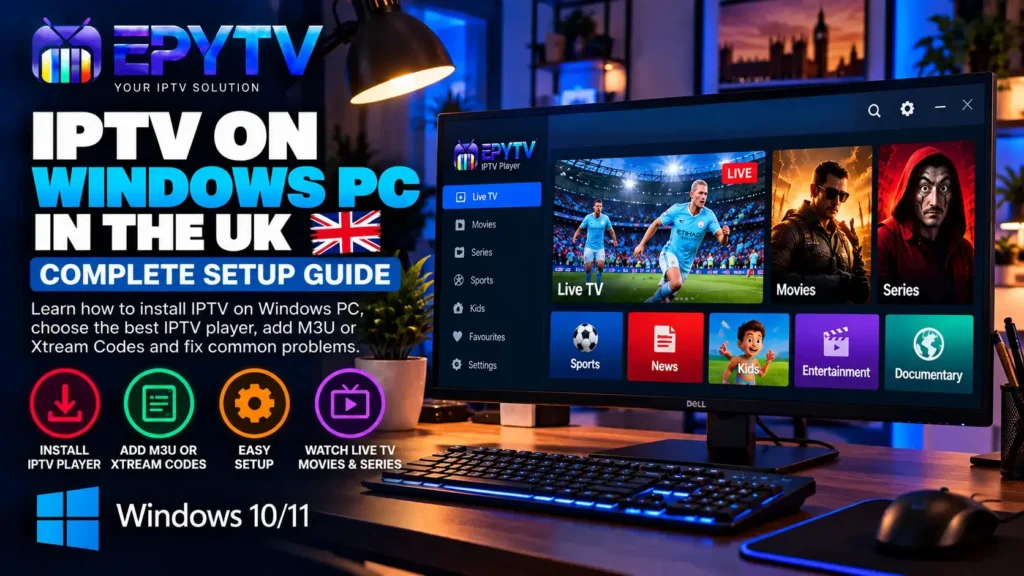
Watching IPTV on a Windows PC can be a simple option if you want to use your computer instead of a Smart TV, Firestick or Android TV device. With the right IPTV player and valid service details, you can watch live channels and other available content directly from your Windows computer.
READY TO GET STARTED?
Choose Your IPTV UK Plan
Set up your IPTV service on your Windows PC and enjoy a simple viewing experience.
Easy Setup • Secure Payment • Flexible Viewing
Can You Watch IPTV on a Windows PC?
Yes. IPTV can be watched on a Windows computer using a compatible media player or IPTV application. The exact setup depends on the player you choose and the type of login information provided by your IPTV service.
For example, some services provide an M3U playlist, while others provide Xtream Codes such as a server URL, username and password.
Windows also supports several common media formats and playlist formats. Microsoft lists M3U among the playlist formats supported by Windows Media Player. 0
What Do You Need to Watch IPTV on Windows?
Before starting the setup, make sure you have the following:
| Requirement | Why You Need It |
|---|---|
| Windows PC | Windows 10 or Windows 11 computer |
| Internet connection | Required for streaming IPTV content |
| IPTV player | Used to load and play your IPTV playlist |
| IPTV login details | M3U link or Xtream Codes, depending on your service |
Which IPTV Player Can You Use on Windows?
There is no single IPTV application that everyone has to use on Windows. Your choice depends on the type of playlist you have and the features you want.
One of the simplest options is VLC Media Player. VLC is a free, open-source multimedia player for Windows and supports various streaming protocols. The official VideoLAN website currently provides Windows versions for different system architectures. 1
Another option is Windows’ own media software for compatible playlists and media files. However, dedicated IPTV players can sometimes provide a more convenient interface for organising channels, EPG information and categories.
You can check the official VLC for Windows download page if you want to use VLC.
How to Install IPTV on Windows PC
The basic process is straightforward. First, choose your IPTV player, then add the playlist or login information supplied by your service.
Step 1: Check Your Windows Version
Before installing anything, check whether your PC is running Windows 10 or Windows 11.
You can check this by going to:
Settings → System → About
This can also help you identify whether you are using a standard Windows edition or a special edition such as Windows N.
Windows N editions do not include some media technologies by default. Microsoft provides the Media Feature Pack for Windows 10 and Windows 11 N editions to restore certain media-related functionality. 2
Step 2: Install an IPTV Player
Install a reputable IPTV player that supports the playlist format provided by your service.
For a basic M3U playlist, VLC can be useful because it supports playlists and streaming. If you prefer a dedicated IPTV interface, you can choose an IPTV player designed for Windows.
Always download software from the developer’s official website or a trusted application store where possible.
Step 3: Get Your IPTV Details
Your IPTV service may provide one of several setup methods.
- M3U playlist URL
- Xtream Codes username
- Xtream Codes password
- Server or portal URL
- EPG URL, if available
Keep these details available before opening your IPTV player.
M3U Playlist vs Xtream Codes on Windows
The two most common setup methods you may come across are M3U playlists and Xtream Codes.
| Feature | M3U | Xtream Codes |
|---|---|---|
| Setup | Playlist URL | Server, username and password |
| Ease of use | Simple in compatible players | Convenient in supported IPTV apps |
| EPG | May require separate EPG information | Depends on the service and player |
| Compatibility | Supported by many media players | Requires a compatible IPTV application |
If you want to understand the difference in more detail, see our guide on M3U vs Xtream Codes.
How to Add an M3U Playlist to VLC
If your service provides an M3U playlist and you want to use VLC, the process is relatively simple.
- Install and open VLC Media Player.
- Click Media in the top menu.
- Select Open Network Stream.
- Enter the M3U playlist URL provided by your service.
- Click Play.
If the playlist is valid and accessible, VLC can load the available streams.
Keep in mind that VLC is primarily a general media player. It may not provide the same IPTV-focused interface as a dedicated IPTV application.
How to Use IPTV Apps on Windows
If you prefer a more traditional IPTV interface, a dedicated IPTV player can be a better option.
The exact menus depend on the application, but the general process usually looks like this:
- Install the IPTV player.
- Open the application.
- Select the option to add a playlist or account.
- Choose M3U or Xtream Codes.
- Enter the details supplied by your service.
- Save the account.
- Wait for the channel list to load.
Some applications may also allow you to organise channels into categories, create favourites and load EPG information.
How to Set Up EPG on Windows
EPG stands for Electronic Programme Guide. It provides programme information such as channel names, programme titles and scheduled broadcast times.
Not every IPTV service or player handles EPG in exactly the same way. Some services provide EPG information with the account, while others may require a separate EPG URL.
If your IPTV player supports EPG, look for options such as:
- EPG URL
- TV Guide
- Electronic Programme Guide
- Update EPG
- Refresh programme data
If the guide is empty or shows incorrect information, check the EPG settings and make sure the playlist and EPG data correspond to each other.
For more information, see our guide to IPTV EPG UK.
How Much Internet Speed Do You Need for IPTV on Windows?
Your internet connection has a major effect on streaming quality. The exact requirement depends on the stream, compression, bitrate and other factors, but these figures can be useful general guidelines.
| Quality | Suggested Speed | Typical Use |
|---|---|---|
| SD | Around 5 Mbps+ | Standard-definition channels |
| HD | Around 10 Mbps+ | HD channels and streams |
| Full HD | Around 15 Mbps+ | Higher-resolution streaming |
| 4K | Around 25 Mbps+ | Compatible 4K streams |
These are practical guidelines rather than guarantees. A fast connection can still experience buffering if the Wi-Fi signal is unstable, the PC is overloaded or the particular stream has problems.
Read our full guide on IPTV internet speed for more information.
Wi-Fi or Ethernet: Which Is Better for IPTV on PC?
If your Windows PC is close enough to your router, Ethernet is often a good choice for a stable connection.
| Connection | Advantages | Possible Issue |
|---|---|---|
| Ethernet | Stable connection and low interference | Requires a cable |
| 5 GHz Wi-Fi | Good speed when close to router | Signal can weaken through walls |
| 2.4 GHz Wi-Fi | Better range | More interference and usually lower speeds |
If you are experiencing buffering, test your connection before changing several settings at once.
IPTV Buffering on Windows: Common Causes
Buffering is not always caused by your internet speed. Several different factors can affect playback.
- Weak or unstable Wi-Fi
- Too many devices using the same connection
- High network traffic
- PC performance problems
- Outdated IPTV player
- Browser or application problems
- Problems with a particular stream
- Temporary server-side issues
Try another channel first. If one channel buffers while other channels play normally, the issue may be specific to that stream rather than your Windows PC.
For a complete troubleshooting guide, visit IPTV Buffering: Causes and Fixes.
How to Improve IPTV Performance on Windows
If IPTV is slow or unstable on your computer, try these basic steps:
1. Close Unnecessary Applications
Close applications that are using a large amount of CPU, RAM or network bandwidth.
2. Stop Large Downloads
Pause large downloads, cloud synchronisation and other activities that are consuming your internet connection.
3. Restart Your Router
A router restart can sometimes resolve temporary connection problems.
4. Use Ethernet
If possible, connect your PC directly to your router using an Ethernet cable.
5. Update Your IPTV Player
An outdated application can sometimes cause playback or compatibility issues. Check whether a newer version is available from the official developer.
6. Check Windows Video Settings
Windows includes video playback settings that can affect how some applications process video. Microsoft documents these settings for Windows 10 and Windows 11. 3
IPTV Not Working on Windows? Try These Fixes
If IPTV does not load at all, work through the following checklist:
| Problem | What to Try |
|---|---|
| App will not open | Restart Windows and reinstall or update the player |
| Playlist does not load | Check the M3U URL or account details |
| Channels buffer | Test internet stability and try Ethernet |
| Black screen | Try another channel or compatible player |
| No sound | Check Windows volume and the player’s audio settings |
| EPG missing | Check EPG settings and refresh programme data |
For more troubleshooting ideas, see our guide on IPTV not working in the UK.
IPTV on Windows 10 vs Windows 11
For most IPTV users, the important factors are not simply whether the computer runs Windows 10 or Windows 11. What matters more is whether the PC can run the selected player, maintain a stable internet connection and handle the video stream.
Windows 11 may offer a newer overall environment, but a well-maintained Windows 10 computer can also be suitable for IPTV playback.
If you use a Windows N edition, remember that Microsoft excludes certain media technologies from these editions and provides the Media Feature Pack as an optional feature. 4
Can You Watch IPTV in Full HD or 4K on a Windows PC?
Potentially, yes. The final quality depends on several things, including the stream itself, your monitor, graphics hardware, media player, internet connection and the available bitrate.
A 4K monitor alone does not turn an HD stream into 4K. The source must actually provide the higher-resolution stream, and your computer must be capable of decoding and displaying it correctly.
If you want to understand the differences between SD, HD, Full HD and 4K, read our guide to IPTV picture quality.
Can You Connect a Windows PC to a TV?
Yes. A Windows PC can be connected to a television using an HDMI cable if the computer and TV support the required connection.
This can be useful if you prefer the flexibility of a PC but want to watch IPTV on a larger screen.
Depending on your hardware, you can use the TV as a second display or mirror the computer screen.
Can You Use IPTV on a Laptop?
Yes. A laptop running Windows can use the same general IPTV setup as a desktop computer.
The main difference is that laptops often rely on Wi-Fi, so connection quality can depend on the distance from the router and the surrounding network environment.
If your laptop is buffering, test it close to the router first. If playback improves significantly, the Wi-Fi connection may be the main issue.
Is VLC Good for IPTV on Windows?
VLC can be a useful choice when you want a simple way to open compatible network streams or M3U playlists. It is free, open source and available for Windows. 5
However, VLC is not designed exclusively for IPTV. Users looking for features such as channel categories, favourites and integrated EPG may prefer a dedicated IPTV player that supports those functions.
The best choice therefore depends on how you want to use IPTV on your PC.
Windows PC vs Smart TV for IPTV
| Feature | Windows PC | Smart TV |
|---|---|---|
| Installation | Install a Windows player | Install compatible TV app |
| Control | Keyboard and mouse | Remote control |
| Flexibility | High | Depends on TV platform |
| Large screen | Requires monitor or TV connection | Built in |
If you are using a Samsung, LG or another Smart TV, our IPTV on Smart TV guide explains the general setup process.
Common IPTV Problems on Windows
Here are some of the most common issues Windows users may encounter:
- IPTV player crashes
- M3U playlist does not load
- Channels take too long to start
- Video keeps buffering
- Black screen during playback
- No audio
- EPG does not appear
- Only some channels work
- IPTV application freezes
- Video quality changes during playback
Do not change every setting at the same time. Start by checking whether the problem affects one channel, the whole playlist or the entire application. This makes it easier to identify where the problem comes from.
How to Choose the Best IPTV Player for Windows
When choosing an IPTV player for your Windows PC, look at the features you actually need.
- M3U support: Useful if your service provides a playlist URL.
- Xtream Codes support: Helpful if your service provides username, password and server details.
- EPG support: Useful if you want a TV guide.
- Favourites: Helpful when your playlist contains many channels.
- Category support: Makes large playlists easier to navigate.
- Playback controls: Useful for adjusting subtitles, audio and video settings.
You can also compare different IPTV applications in our Best IPTV Apps UK guide.
Is IPTV on Windows PC Good for UK Users?
A Windows PC can be a practical IPTV option for UK users who prefer watching content on a computer or laptop. It also gives you more flexibility when choosing media players and managing playlists.
Another advantage is that you can connect the computer to a larger display when you want a bigger viewing experience.
The main thing is to use a suitable player, keep your Windows system updated and make sure your IPTV UK service and content are being used legally.
Is IPTV Legal in the UK?
IPTV is a technology used to deliver television and video content over an internet connection. The legality of the service depends on the content being provided and whether the provider has the necessary rights or permissions.
Before using an IPTV service, make sure that you have the right to access the content and that your use complies with applicable UK laws and the terms of the service.
Frequently Asked Questions
Can I watch IPTV on Windows 11?
Yes. IPTV can be watched on a Windows 11 PC using a compatible IPTV player or media player and valid service details.
Can I use M3U on Windows?
Yes. M3U playlists can be used with compatible Windows media players and IPTV applications. Microsoft also lists M3U among the playlist formats supported by Windows Media Player. 6
Can I use Xtream Codes on a Windows PC?
Yes, provided that the IPTV player you choose supports Xtream Codes login. You normally need the server URL, username and password supplied by your service.
Why is IPTV buffering on my PC when my internet is fast?
Internet speed is only one factor. Wi-Fi instability, network congestion, PC performance, the IPTV application or the individual stream can also cause buffering.
Can I use VLC for IPTV?
Yes. VLC supports streaming and is available for Windows. It can be useful for compatible IPTV streams and M3U playlists, although it does not provide every feature of a dedicated IPTV application. 7
Can I watch IPTV on my laptop?
Yes. A Windows laptop can use the same basic IPTV setup as a desktop PC. A stable internet connection is particularly important when using Wi-Fi.
Can I connect my PC to my TV?
Yes. If your computer and television support HDMI, you can connect them and use the TV as a larger display.
Why does my IPTV playlist not load?
Check that the M3U URL or login details are correct and that the service is accessible. You can also try another compatible IPTV player to determine whether the issue is application-related.
Final Thoughts
Setting up IPTV on a Windows PC does not have to be complicated. Once you have a compatible player, a stable internet connection and valid IPTV details, you can set up your playlist and start watching on your computer.
For a simple setup, VLC can be useful for compatible M3U playlists and streams. If you want features such as EPG, favourites and organised channel categories, a dedicated IPTV player may be more suitable.
If you are building a complete IPTV setup at home, you can also check our guides for Smart TV, Firestick, Google TV and Android TV.
You can also return to the EpyTV to see the available IPTV options.
READY TO GET STARTED?
Choose Your IPTV UK Plan
Set up your IPTV service on your compatible device and enjoy a simple viewing experience.
Easy Setup • Secure Payment • Flexible Viewing